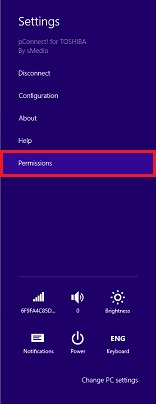
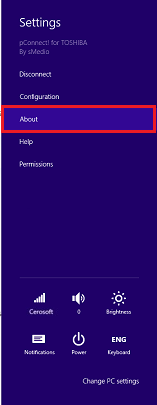
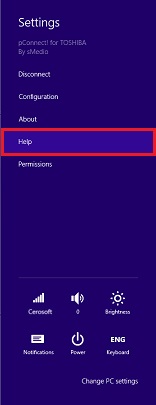
In Settings, you can disconnect paring, change configuration, find the version in About, open this manual from Help and change application permission
>>Go to Disconnect
>>Go to Configuration
>>Go to About
>>Go to Help
>>Go to Permissions
To modify Settings, please follow the steps below:
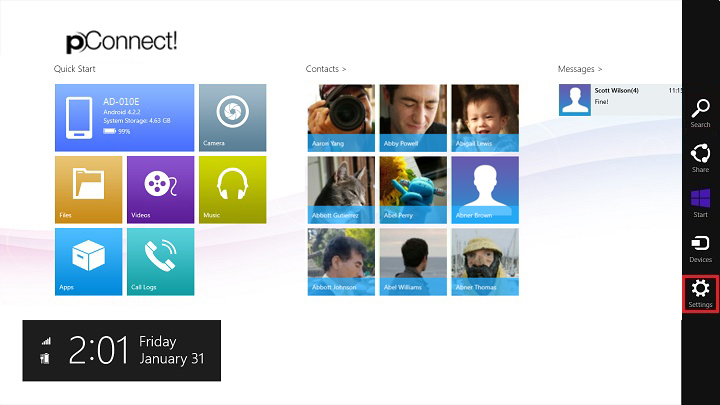
1. Swipe to the left from the right edge of the screen, or place the mouse pointer in the lower or upper right corner of the screen and click/tap Settings on charm.
2. Setting menu will be appeared and select option you want to change.
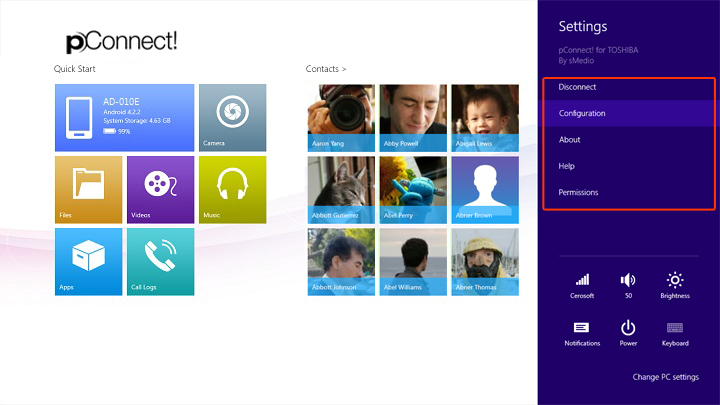
Disconnect
Connection between PC and smartphone can be disconnected either from smartphone or PC application.
By disconnect, it will stop PC from accessing mobile content and save mobile battery usage
Disconnect from PC:
1. Click/tap "Disconnect" on Settings page.
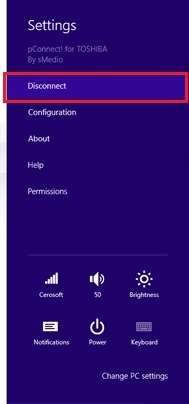
2. Click/tap "OK".

Disconnect from smartphone:
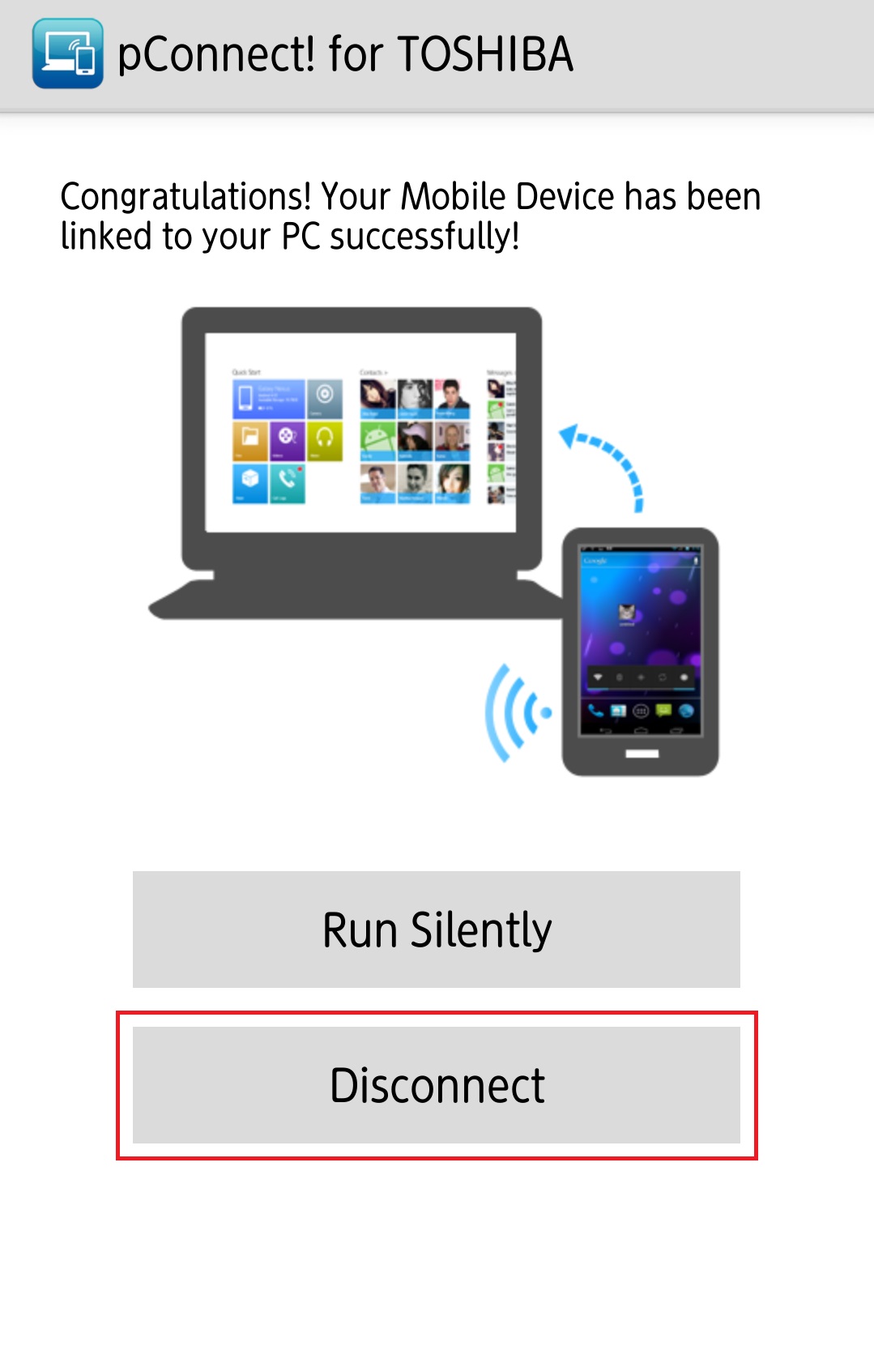
1. Click/tap "Disconnect" displayed on your smartphone
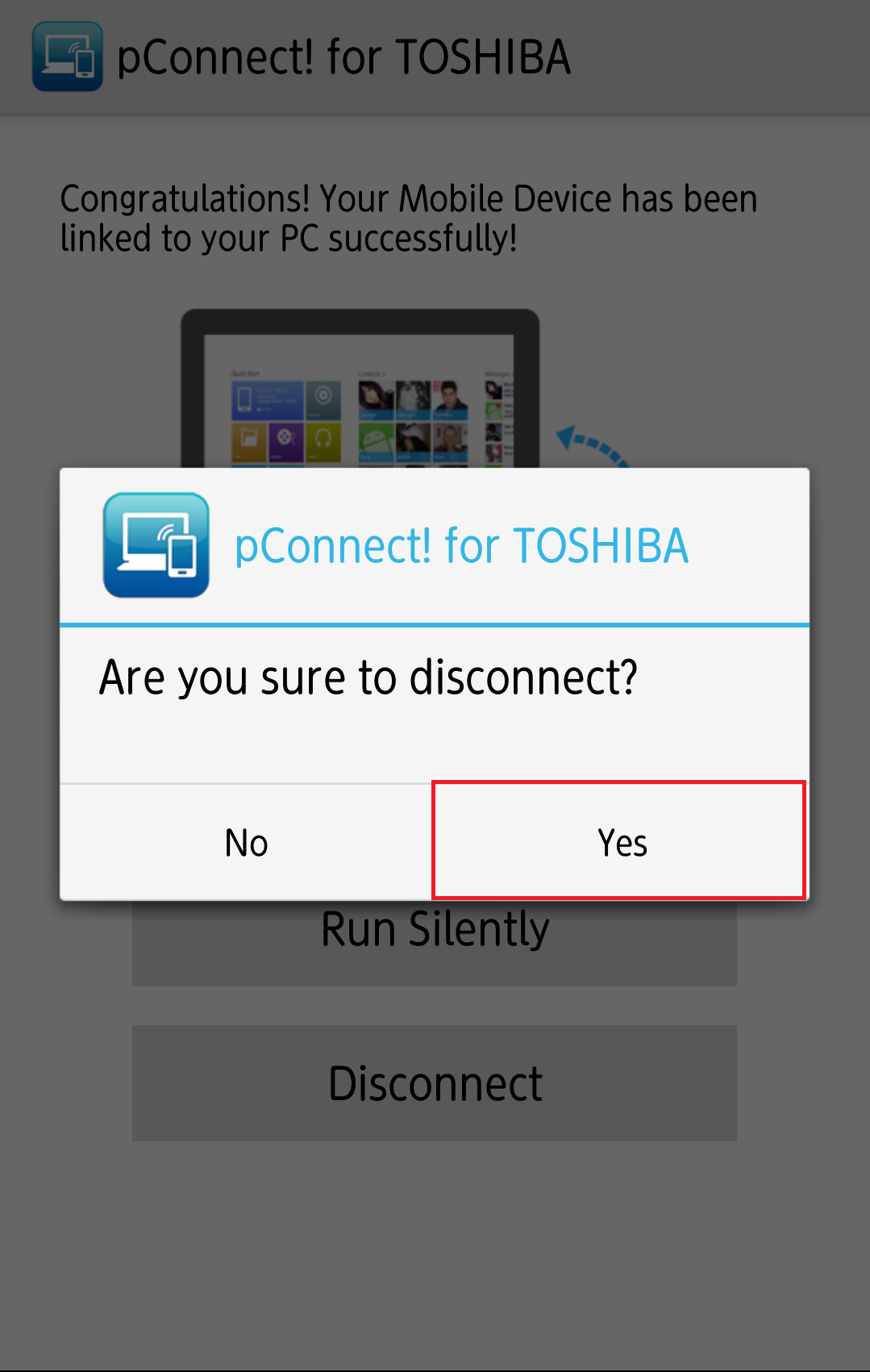
2. Confirmation message will be displayed. Click/tap "Yes" to disconnect.
Please see [Remove Pairing] to find out how to remove pairing
Configuration
You can change the following application configuration under "Configuration".
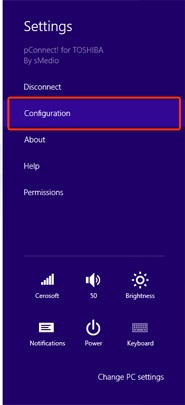
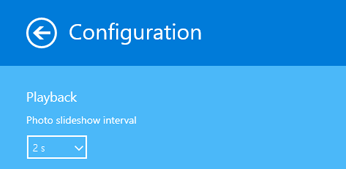
- Photo slideshow interval
Photo slideshow interval can be set as 2 to 10seconds.
Please see [Playback Photo] for photo slideshow.
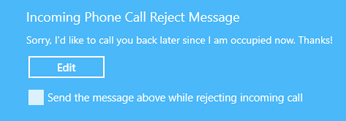
- Incoming Phone Call Reject Message
This message is sent automatically when you reject incoming call.
To edit the message, please click/tap "Edit".
By uncheck "Send the message above while rejecting incoming call", the message will not be sent.
Please see [Incoming call notification] to find out the feature.
- File download path
You can edit file download path for Photos, Videos, Music, and Files by click/tap "Edit".
Please see [Download Video], [Download Photo], [Download Music], [Download Files] to find out the feature.
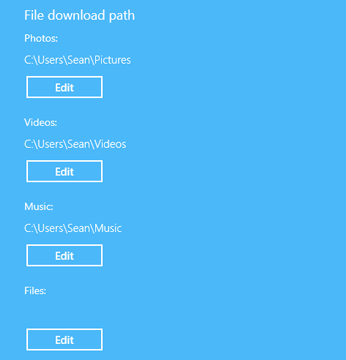
NOTE: File download path are blank as default. You need to set path before start downloading.
About
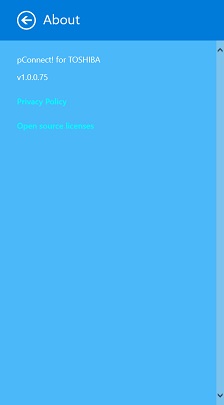
You can check version of pConnect! application. From this section, you can also find privacy policy and open source license information.
Help
You can open online manual of pConnect!
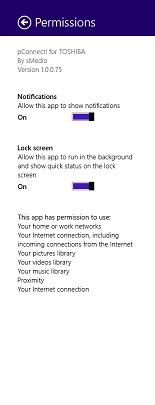
Permissions
You can check the following Permissions required by pConnect! application.
- Notifications
Incoming call and message notifications On/Off
- Lock screen
Allows pConnect! runs background while you lock PC by turning on this.
*Please note: by turning off Notifications and Lock screen, some of the features will not be available on pConnect!
Please refer to [Remarks]