With pConnect!, you can Open Files in your smartphone, download to your PC, and upload to your smartphone.
>>Go to Open/Delete Files
>>Go to Download Files
>>Go to Upload Files
You can browse files/folders from either A or B:
A. Click/tap tile of “Files” in Quick Start menu
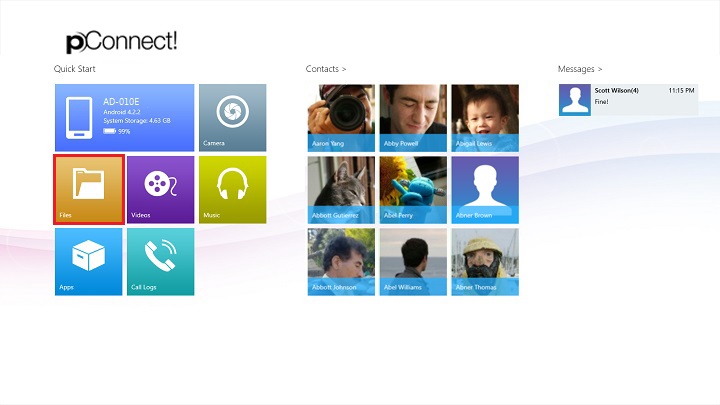
B. Click/tap “Files” from Flyout menu of each contents
Below images show browse Files from Photos Flyout menu.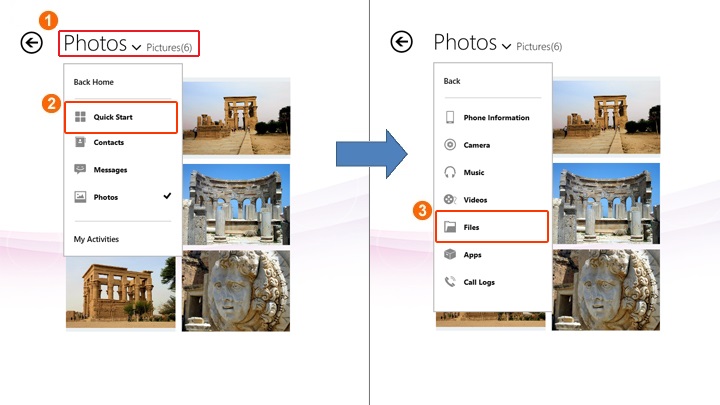
Open/Delete Files
1. Select file folder in Files page. This page shows all files & folders in Internal and External SD card.
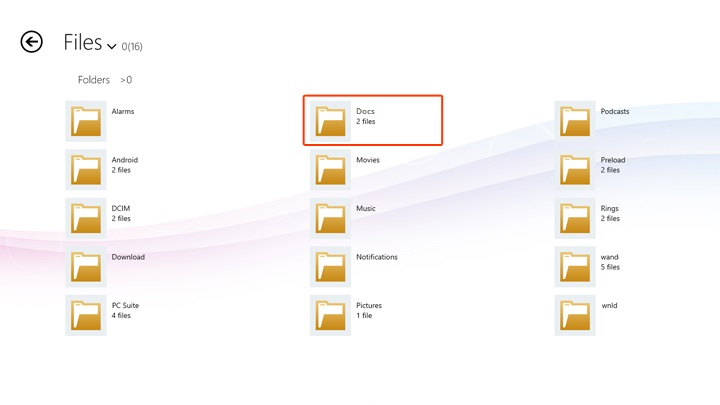
2. Select files then click/tap "Open" on App bar to open the file. By click/tap "Delete" the file will be deleted.
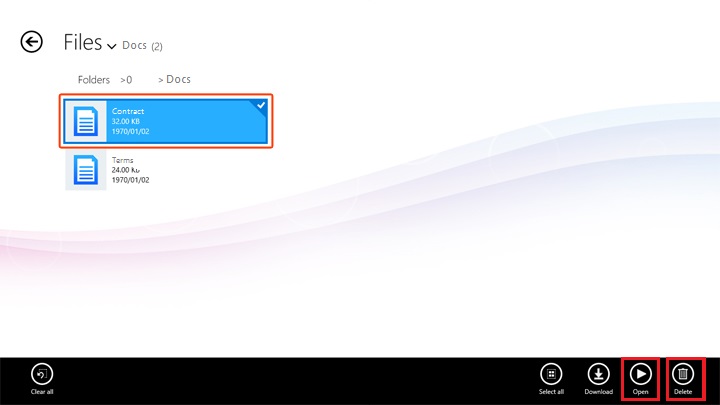
App commands
 |
Clear all selected files |
 |
Select all files |
 |
Download selected files to PC |
 |
Open selected files |
 |
Delete selected files |
File playback screen
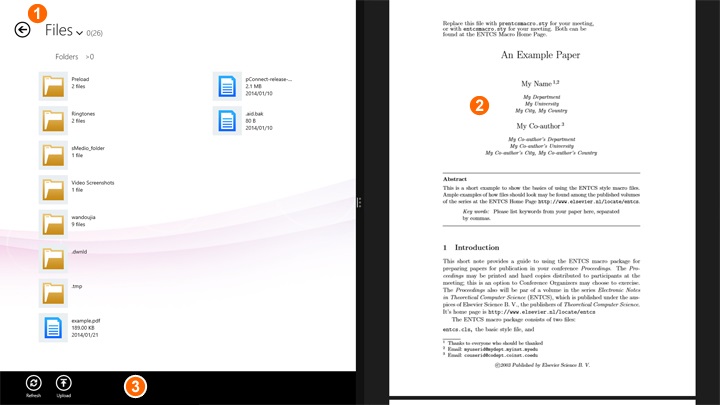
| ① | Return: You can exit from playback screen by click/tap this icon |
| ② | File preview area |
| ③ | App commands: Files playback control functions. Details are as follows: |
App commands
 |
Refresh: Refresh Files page to the latest |
 |
Upload: Upload selected files to smartphone. Please refer [Uploads Files]. |
Download Files
You can download Files by the following steps:
1. Right click or cross slide on files you want to download, then click/tap "Download" on App bar
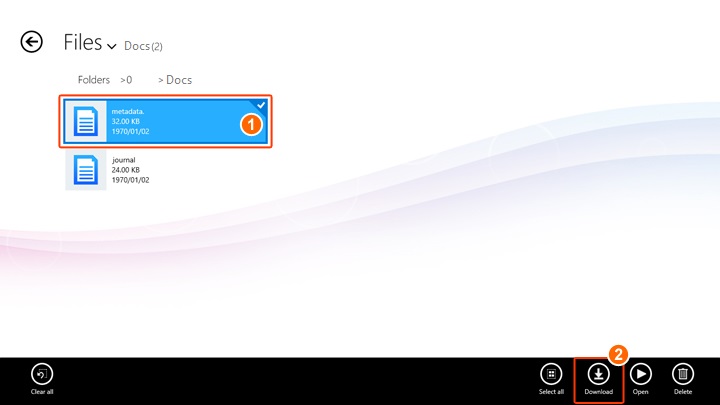
App commands
Same as Open/Delete Files
2. Click/tap "OK" to confirm download folder
*pConnect! for TOSHIBA reminds you to set up download path for the first downloading.
The path can be modified from Configuration in [Settings].
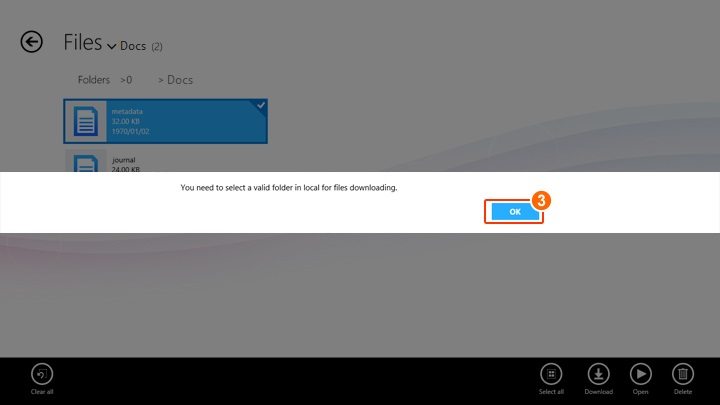
3. Select a valid download folders from PC with the folder picker, then click/tap ""Choose this folder"
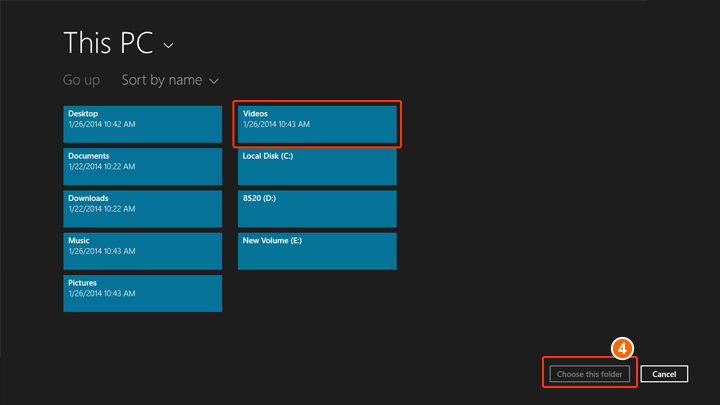
Note: For the first download, you will be asked to setup file download folder. Files except Photo, Video, and Music will be saved to the file download path.
Upload Files
You can upload files from PC to your smartphone on Files page by following steps below.
1. Go to Files page where you want to upload files to, then open App bar by right click or cross slide and click/tap "Upload" to display file picker screen.
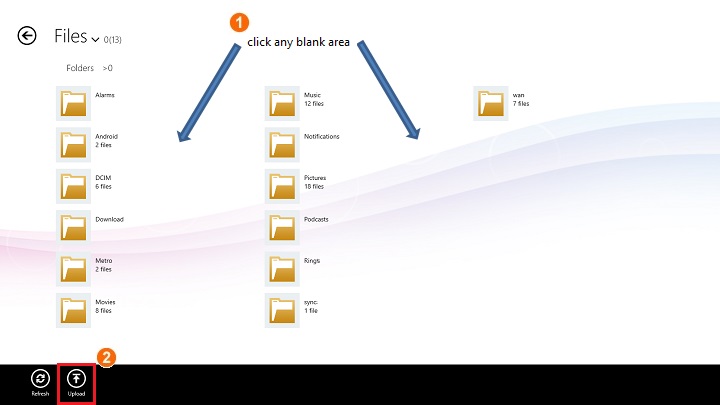
App commands
|
Refresh: Refresh display |
 |
Upload: Upload selected files to smartphone |
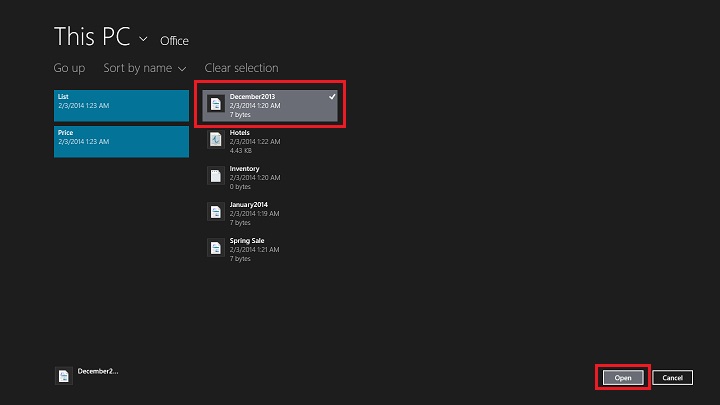
2. Right click or cross slide the files you want to upload and click/tap "Open". The selected files will be uploaded to smartphone.
You can find the upload status in [My activities] page.