
With pConnect!, you can play back Video in your smartphone, and download Video to your PC.
>>Go to Playback Video
>>Go to Delete Video
>>Go to Download Video
You can browse video folder from either A or B:
A. Click/tap tile of “Videos” in Quick Start menu
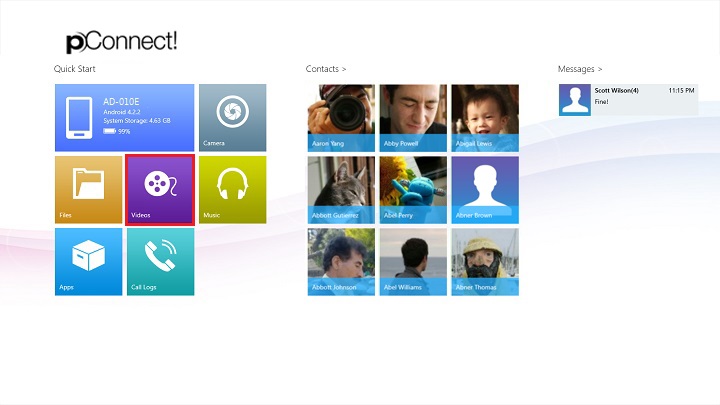
B. Click/tap “Videos” from Flyout menu of each contents
Below images show browse video folder from Photos Flyout menu.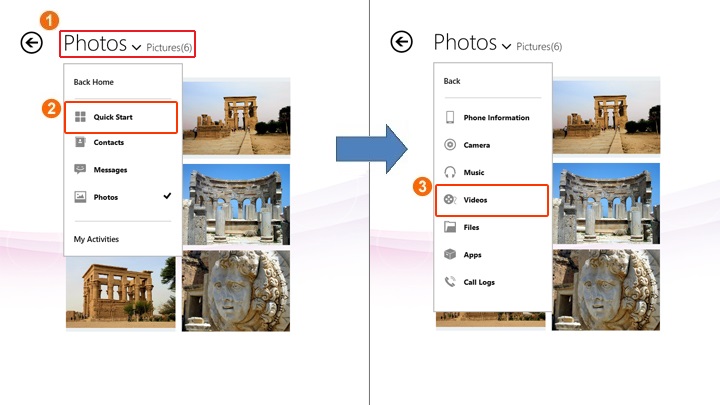
Playback Video
1. Select a video folder
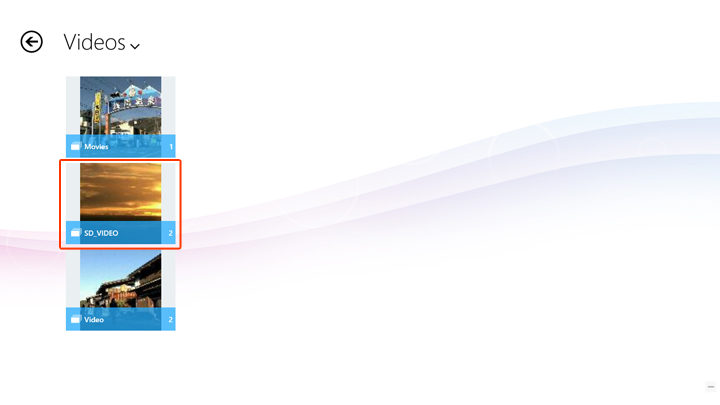
2. By selecting a video you want to play in the selected folder, the video playback will be started
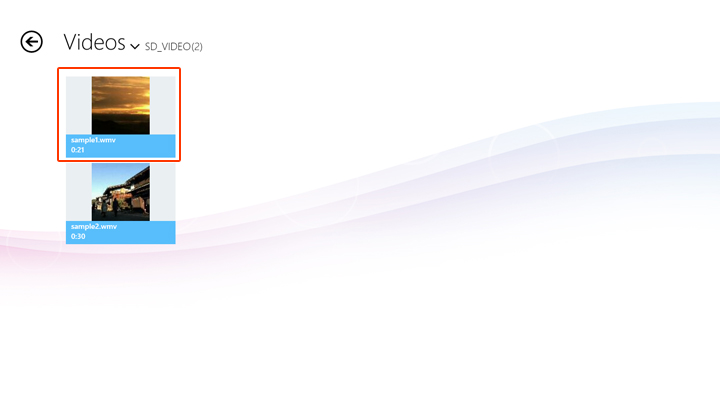
*Video and audio playback may not play smoothly depending on your system environment.
*pConnect! on the PC may display video and audio files in your smartphone even though these files cannot playback.
These are also mentioned at [Remarks]
Video playback screen
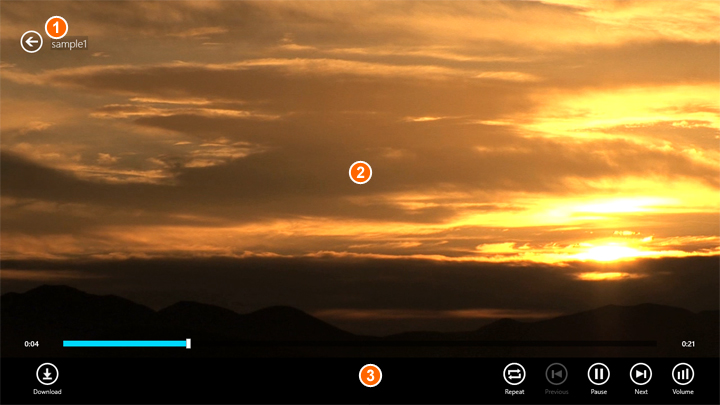
*Playback time or total playback time may be different from actual playback time if you play video files with pConnect!
This is also mentioned at [Remarks]
| ① | Return: You can exit from playback screen by click/tap this icon. |
| ② | Current playback video |
| ③ | App commands: Video playback control functions. Details are as follows: |
App commands
 |
Download: Download a playing video |
 |
Repeat: You can switch Repeat off/Repeat all/Repeat 1 |
 |
Repeat: Repeat all |
 |
Repeat: Repeat 1 |
 |
Start playback from the beginning, or back to the previous video when you click/tap within 5 seconds from the start of the video |
 |
Stop forward or reverse mode, and start playback from the specific point |
 |
Pause video |
 |
Skip to next video |
 |
Control volume |
Delete Video
You can delete Videos by following steps below.
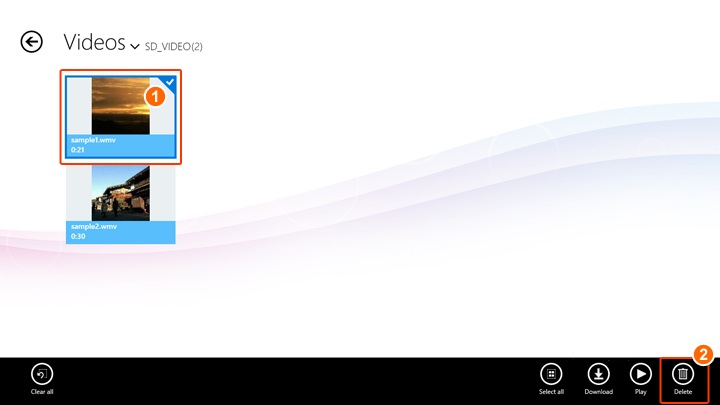
| ① | Right click on Video thumbnail(s) you want to delete. App bar will be displayed. |
| ② | Click/tap "Delete" on App bar |
App commands
 |
Clear all selected videos and exit select mode |
 |
Select all videos |
|
Download selected videos. Please refer "Download Video" below |
|
Start playback selected video |
 |
Delete all selected videos |
Download Video
You can download Videos from your smartphone to PC.
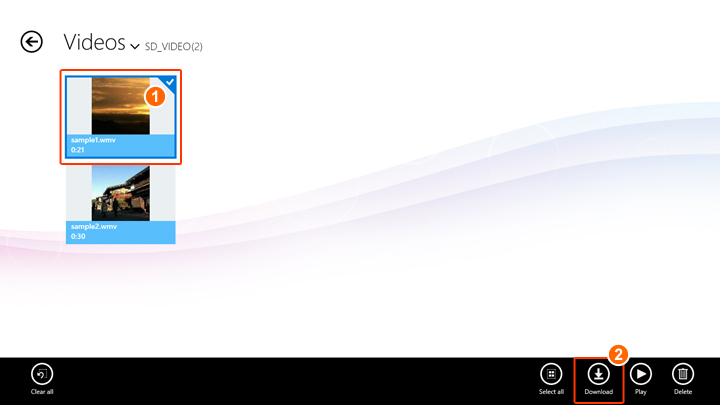
| ① | Right click on Video thumbnail(s) you want to download. App bar will be displayed. |
| ② | Click/tap "Download" on App bar |
| Default download folder is C:\Users\username\Videos. This can be edited from Configuration in [Setting]. | |
| By click/tap "Download" on App bar, download will start. You can find the transfer status in [My activites] page. |
App commands
Same as Delete Video
