With pConnect!, you can playback Music in your smartphone, and download Music to your PC.
>>Go to Playback Music
>>Go to Remove Music
>>Go to Delete Music
>>Go to Download Music
>>Go to Background Playback
You can browse muisc folder from either A or B:
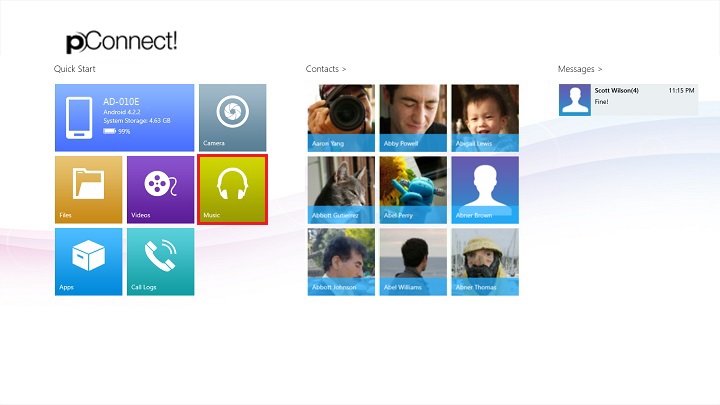
A. Click/tap tile of Music in Quick Start menu
B. Click/tap Music from Flyout menu of each contents
Below images show browse music folder from Photos Flyout menu.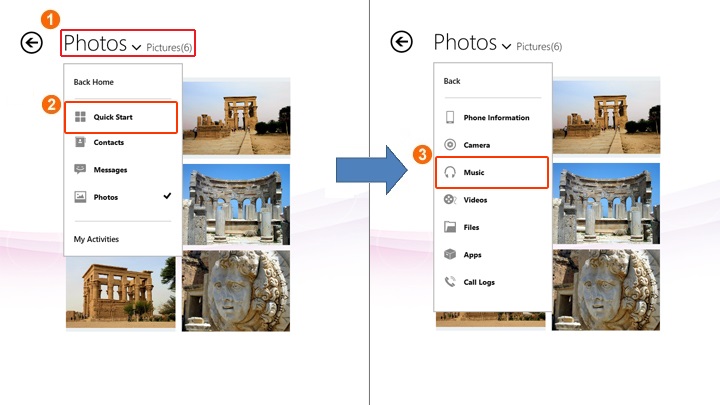
Playback Music
1. Select music album you want to listen
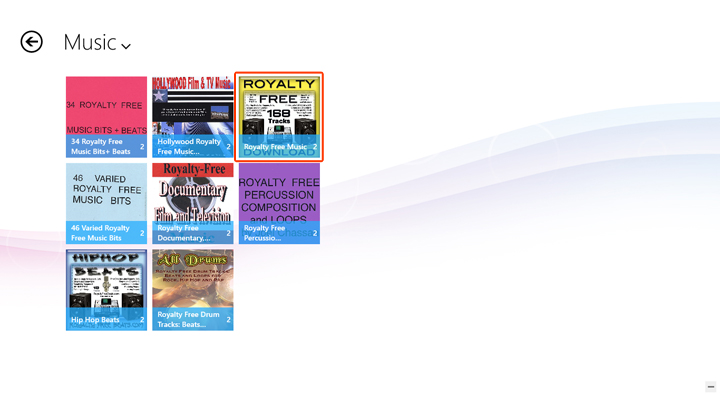
2. By selecting music in the selected music album, the music playback will be started
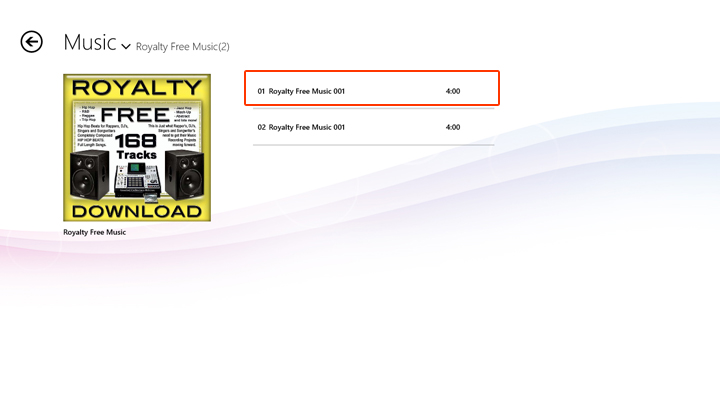
*Video and audio playback may not play smoothly depending on your system environmnet.
*pConnect! on the PC may display video and audio files in your smartphone even though these files cannot playback.
These are also mentioned at [Remarks]
Music playback screen
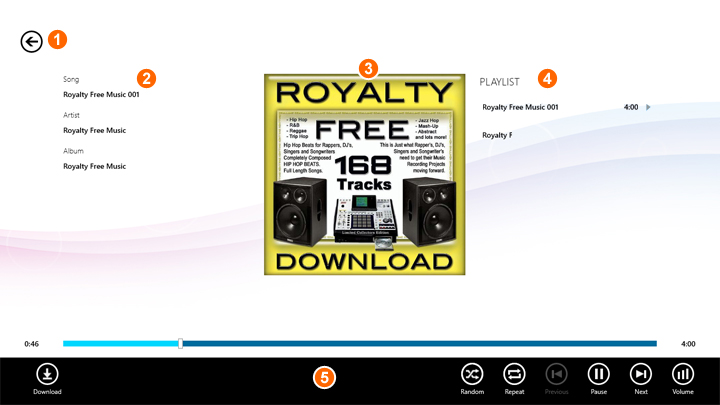
| ① | Return: You can exit from playback screen by click/tap this icon |
| ② | Music information: song name, album name and artist name |
| ③ | Album art work |
| ④ | Music playlist |
| ⑤ | App commands: Music playback control functions. Details are as follows: |
App commands
 |
Download: Download a playing media |
 |
Playback all songs in a queue by shuffle mode. Click/tap the icon again to cancel shuffle mode. |
 |
Repeat: You can switch Repeat off/Repeat all/Repeat 1 |
 |
Repeat: Repeat all |
 |
Repeat: Repeat 1 |
 |
Start playback from the beginning, or back to the previous music when you click/tap within 5 seconds from the start of the music |
 |
Playback music |
 |
Pause music |
 |
Skips to next music |
 |
Control volume |
Remove Music from Playlist
On music playback screen, selected playlist music can be removed from Playlist by click/tap "Remove" on App bar.
This only removes selected music from Playlist, not delete music itself.
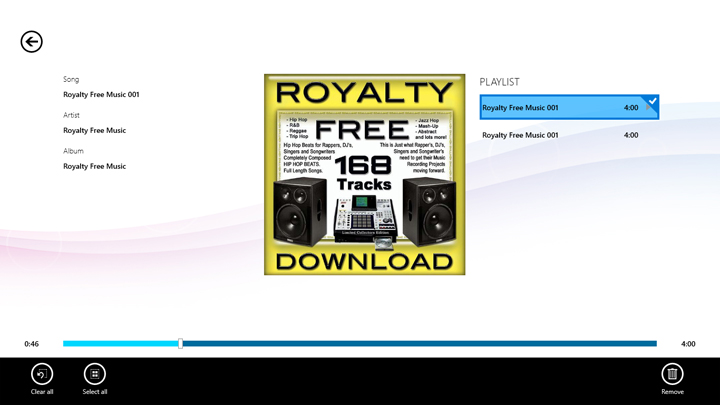
App commands
 |
Clear all selected music and exit select mode |
 |
Select all music in play queue |
 |
Remove all selected music from play queue |
Delete Music
You can delete musics by following steps below.
This action deletes selected music itself from smartphone.
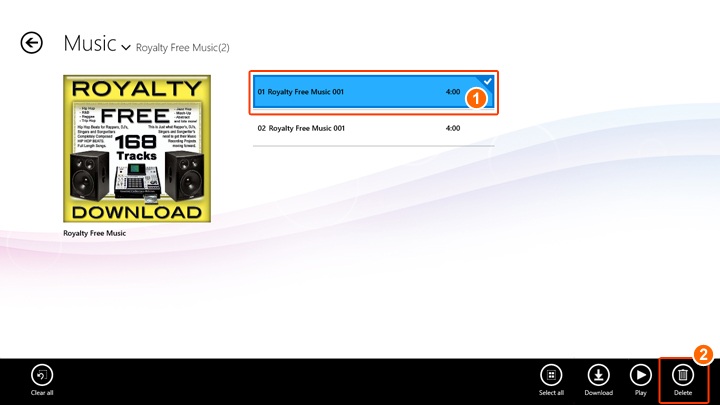
| ① | Right click musics you want to delete. App bar will be appeared. |
| ② | Click/tap "Delete" on App bar |
App commands
|
Clear all selecte music and exit select mode |
|
Select all music |
|
Download selected music. Please refer "Download Music" below |
|
Start playback selected music |
|
Delete all selected music |
Download Music
You can download musics from your smartphone to PC.
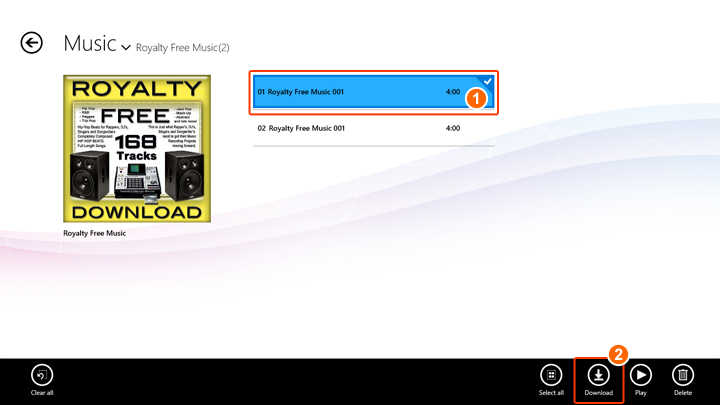
| ① | Right click musics you want to download. App bar will be displayed. |
| ② | Click/tap "Download" on App bar |
| Default download folder is C:\Users\username\Music. This can be edited from Configuration in [Setting]. | |
| By click/tap "Download" on App bar, download will start. You can find the transfer status in [My activites] page. |
App commands
Same as Delete Music
Background Playback
When you switch to the playback screen, pause/play icon at center of screen is available for playback control.
It will disappear automatically in 5 seconds without any operation. You can invoke this icon by a mouse click or tap on playback screen(except the play queue area) when App commands doesn't display.
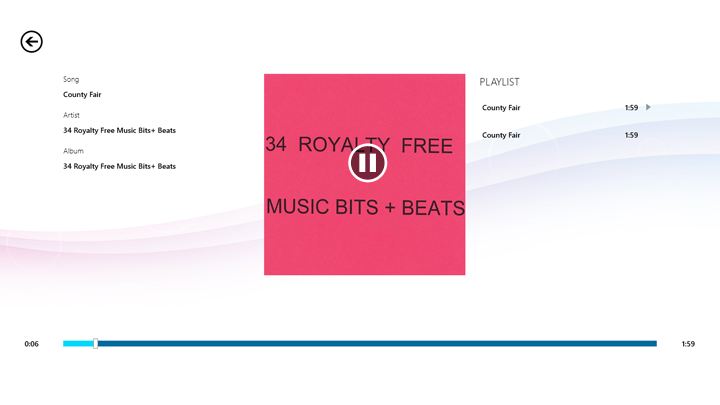
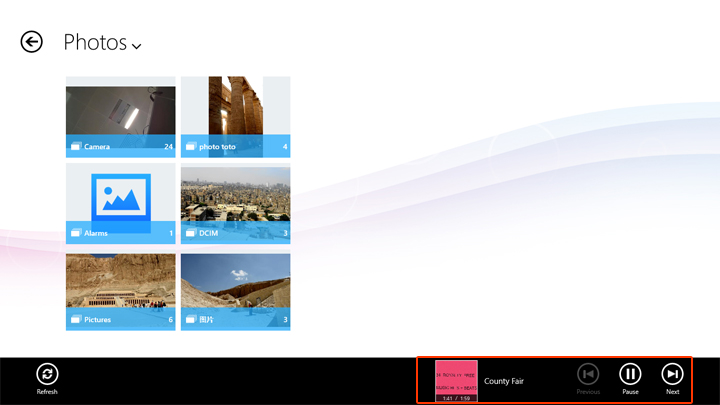
Once you open the music to playback, the music being selected will turn to background "now playing music". If you switch to other pages, the "now playing music" information will be shown in App bar on the browse page of Phone Information, Files, Music, Video, Apps, Call Logs, Contacts, Messages and Photos. Below image shows photo browse page as an example: