You can check Call Logs of your smartphone. Check Incoming/OutGoing/Missed call, Send Message/Call from Call Logs and save Contacts by pConnect!
>>Go to Call out from Call Logs
>>Go to Delete Call Logs
>>Go to Send Message
>>Go to Send Email
>>Go to Save Unknown Contacts
You can open Call Logs from either A or B:
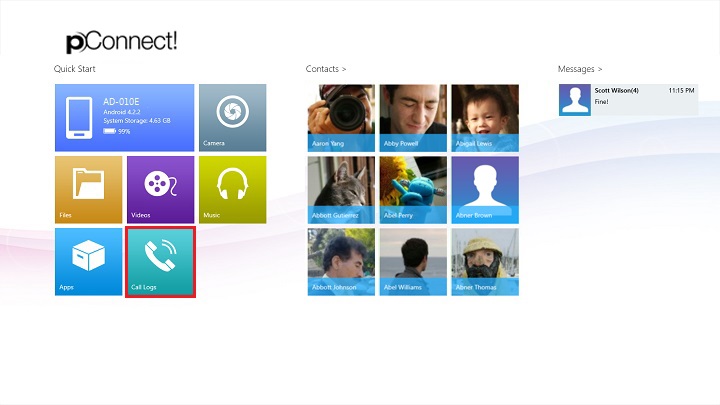
A. Click/tap tile of “Call Logs” in Quick Start menu
B. Click/tap “Call Logs” from Flyout menu of each contents.
Below images show open “Call Logs” from Photos Flyout menu.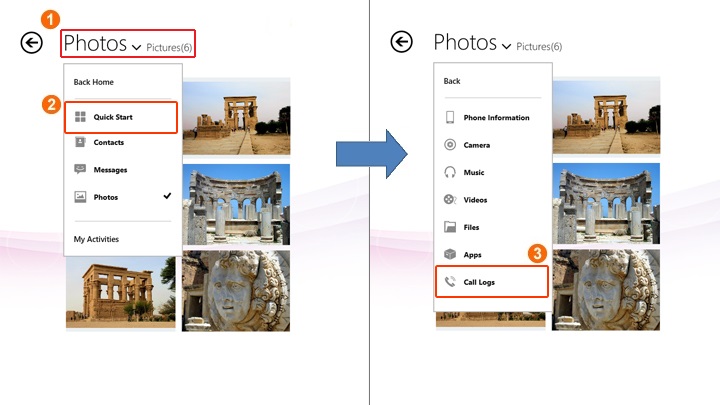
Call Logs icon description:
 |
Incoming Call |
 |
OutGoing Call |
 |
Missed Call |
Call out from Call Logs
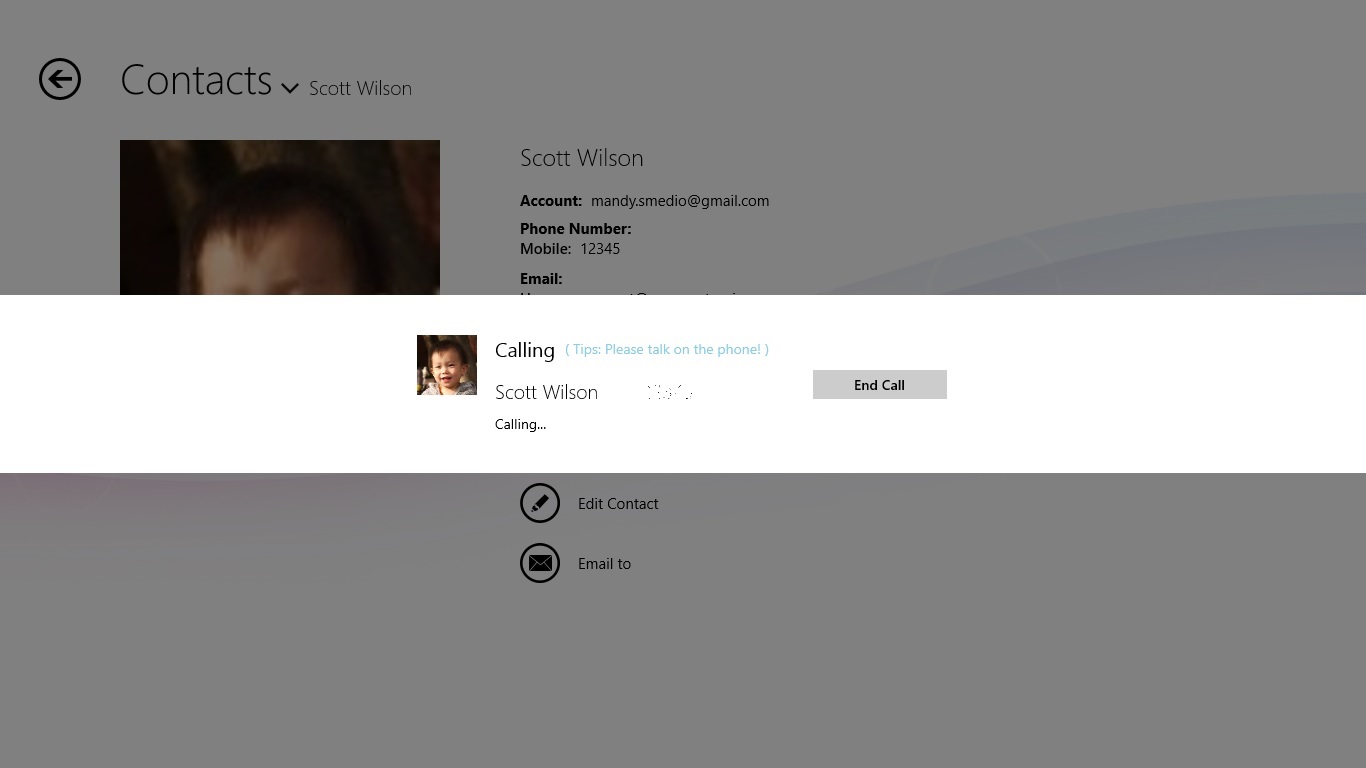
Select a call log you want to call and click/tap "Call".
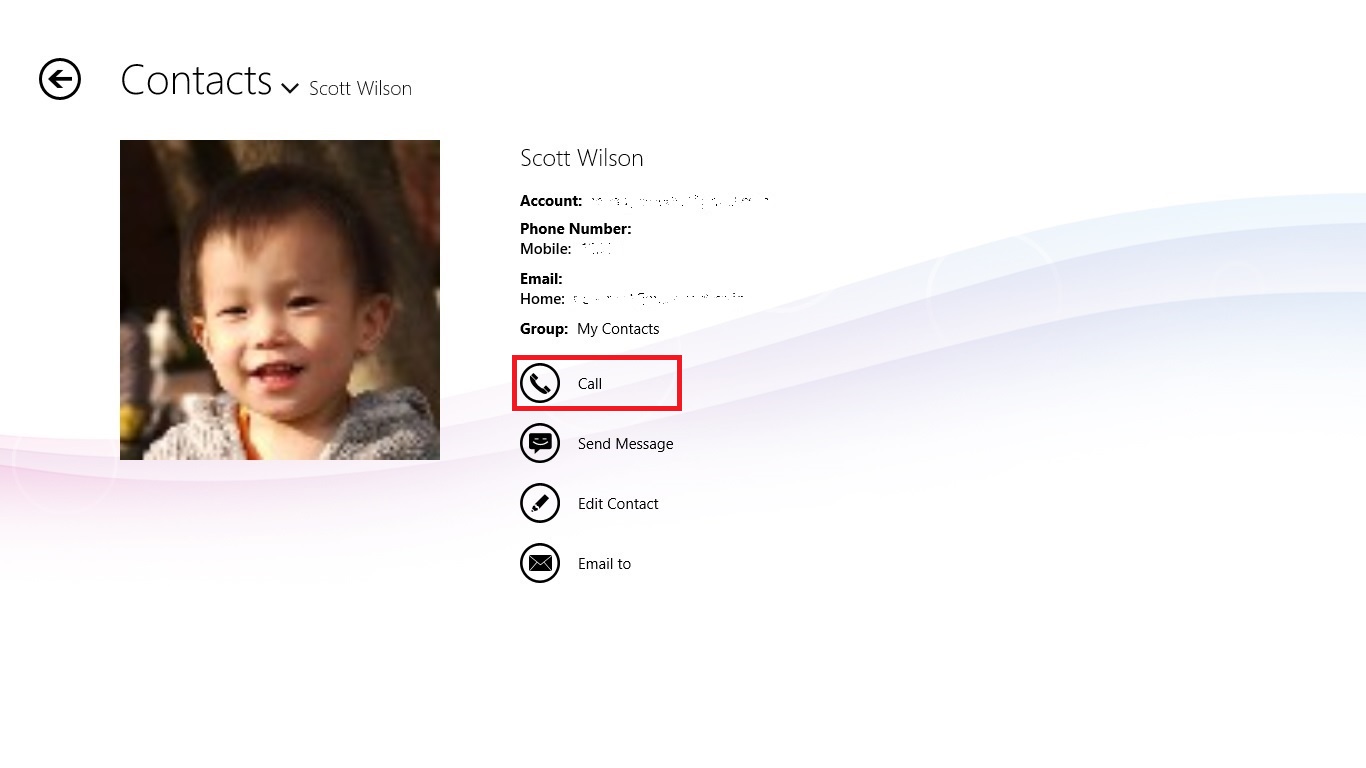
Call out started. By click/tap "EndCall" button, the call will be finished.
Delete Call Logs
By right click or cross slide the selected Call Logs, you can click/tap "Delete" on App bar.

App commands
 |
Clear all selected call logs and exit select mode |
 |
Select all call logs |
 |
Delete selected call logs |
Send Message
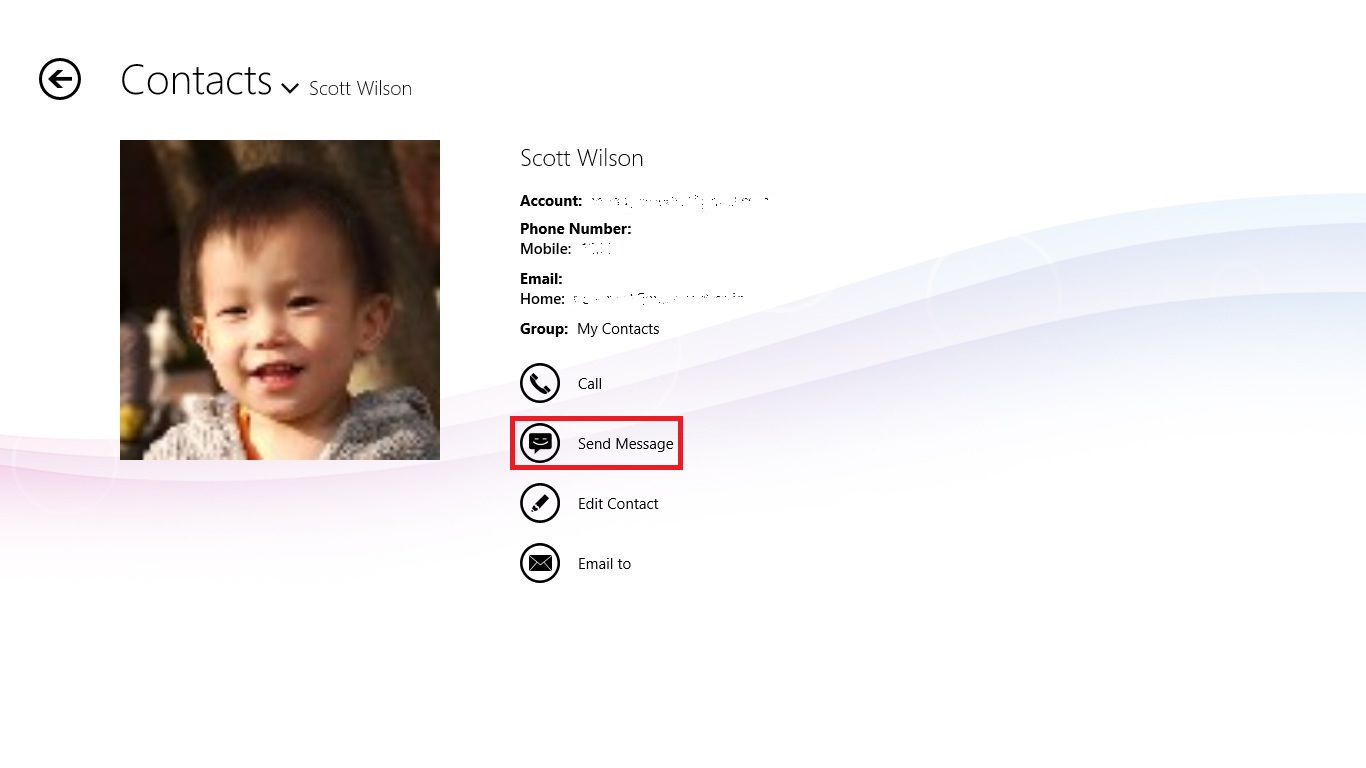
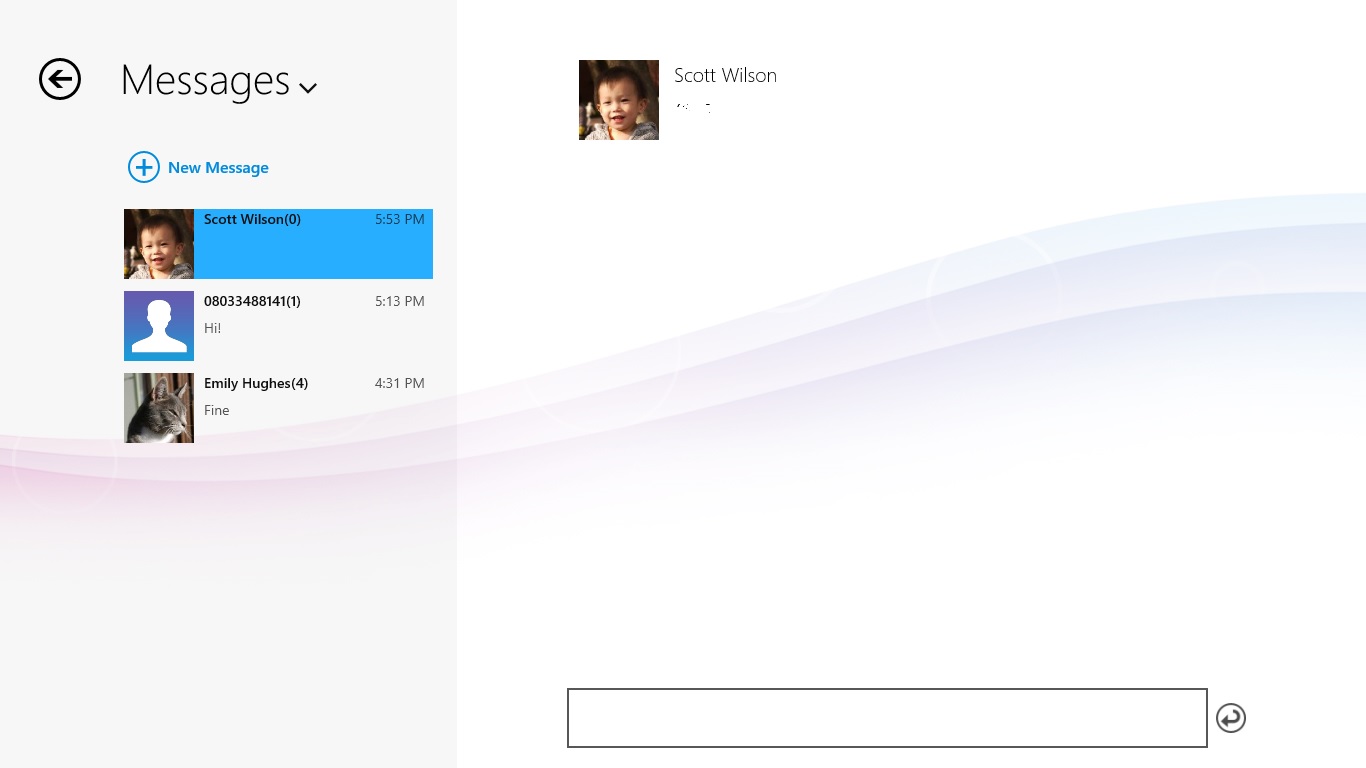
Select a call log you want to send message and click/tap "Send Message".
Send Email
If the contact has e-mail, select a call log you want to send email and click/tap "Email to".
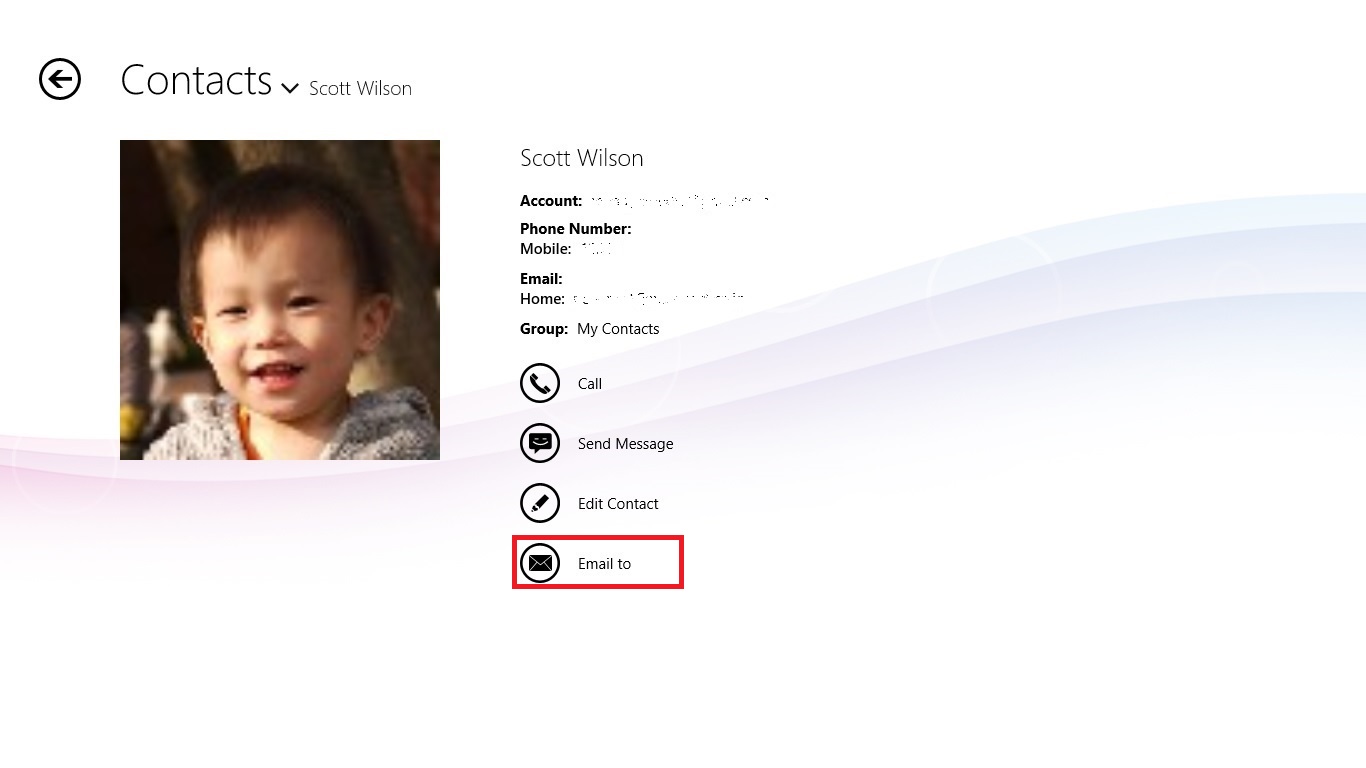
Default e-mail application will be launched from Windows OS.
Save Unknown Contacts
1. Select an unknown call log from Call Logs page.
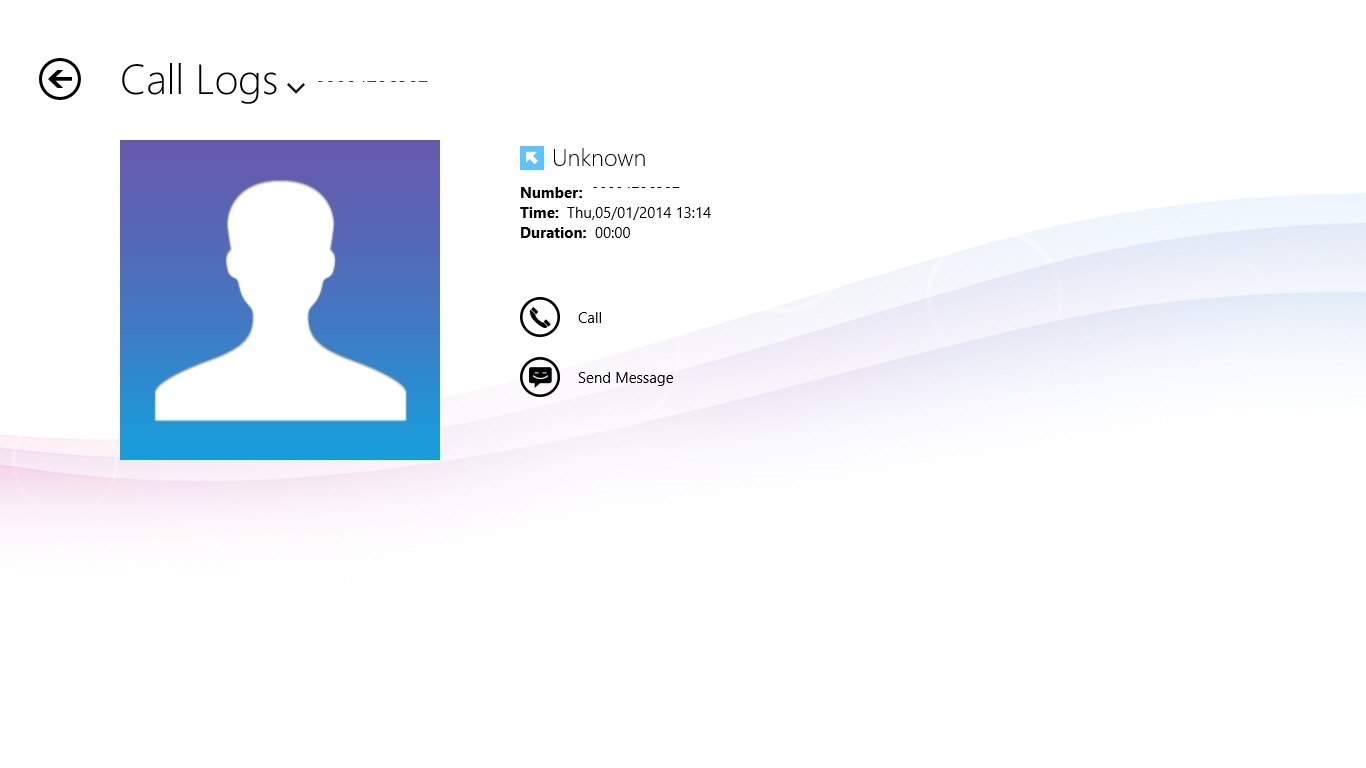
2. Right click in this page or flick from bottom of screen, then "Save Contact" will be appeared in App bar.
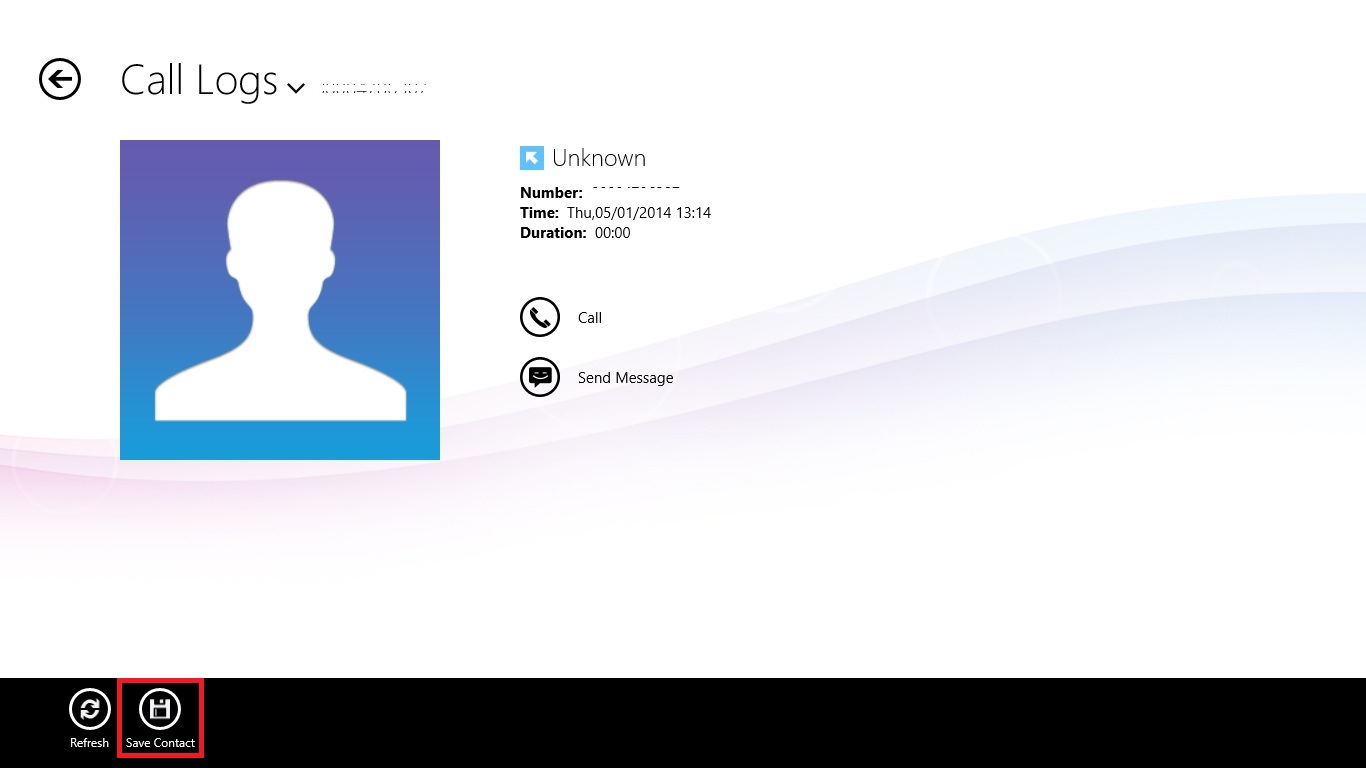
App commands
 |
Refresh: Refresh display |
 |
Save Contact: Save unknown person to contact |
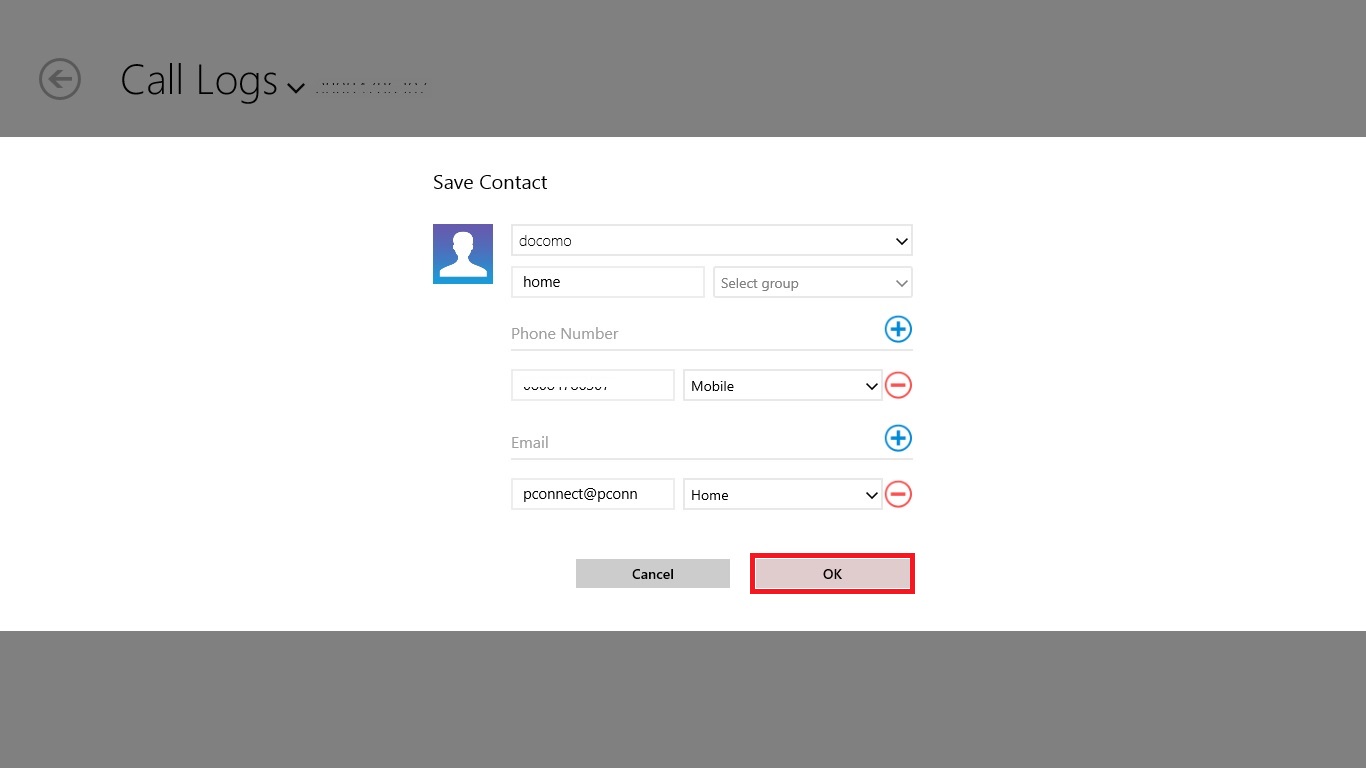
3. Enter the contact information then click/tap "OK".