
You can manage Apps in your smartphone. Install/Uninstall and download apk by pConnect!
>>Go to Unistall Apps
>>Go to Install Apps
>>Go to Download apk
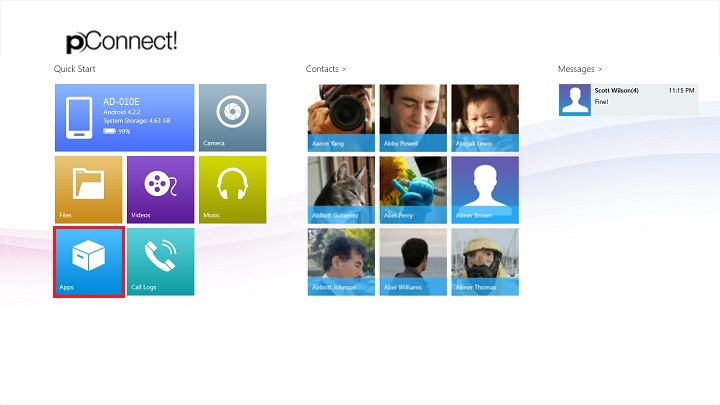
You can open Apps from either A or B:
A. Click/tap tile of “Apps” in Quick Start menu
B. Click/tap “Apps” from Flyout menu of each contents.
Below images show open “Apps” from Photos Flyout menu.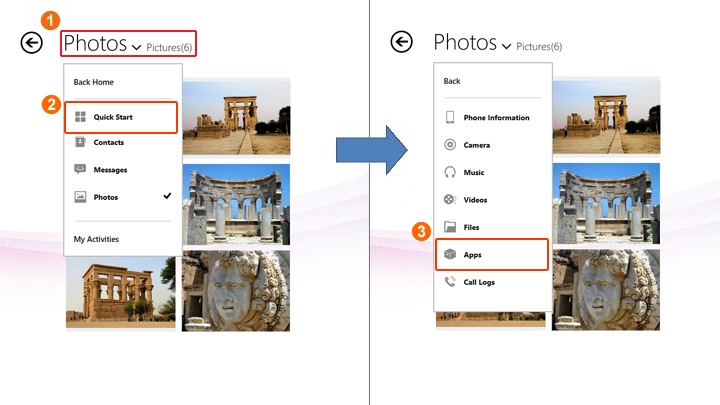
Uninstall Apps
1. Right click or cross slide on apps you want to uninstall, App bar will be appeared then click/tap "Uninstall".
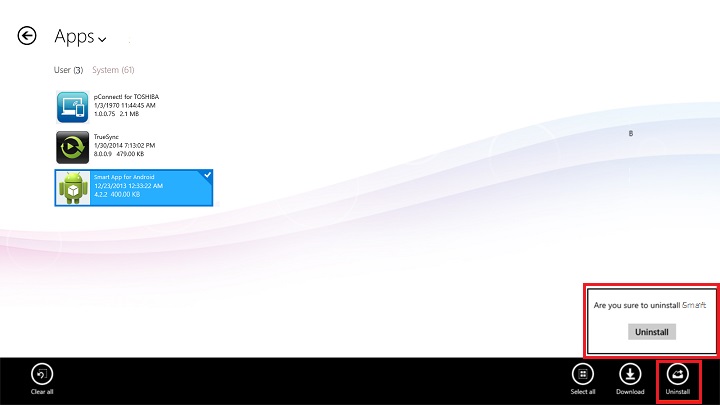
App commands
 |
Clear all selected apps and exit select mode |
 |
Select all apps |
 |
Download selected apps. Please refer "How to download apk file from your smartphone to PC" below |
 |
Uninstall selected apps |
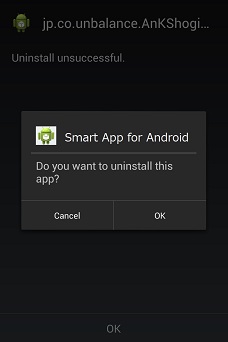
3. Confirmation message will be displayed on your smartphone. By tapping "OK", uninstall will start.
Install Apps
1. Open App bar by right click or cross slide, then click/tap "Install".
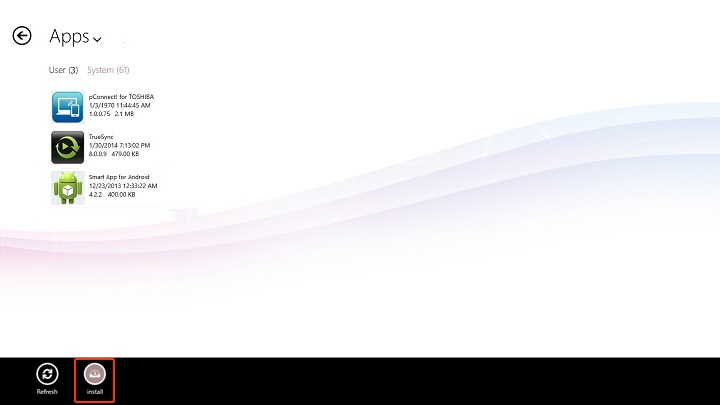
App commands
 |
Refresh: Refresh display |
 |
Install: Install selected app |
2. Select an app file from your PC.
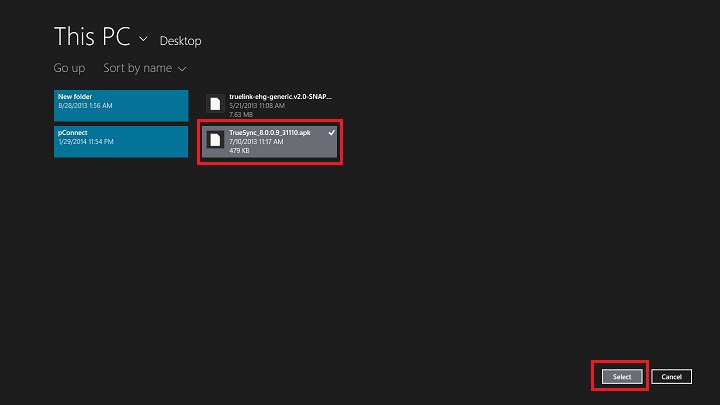
3. Confirmation message will be displayed and you can install the app to your smartphone.
Confirmation message on PC: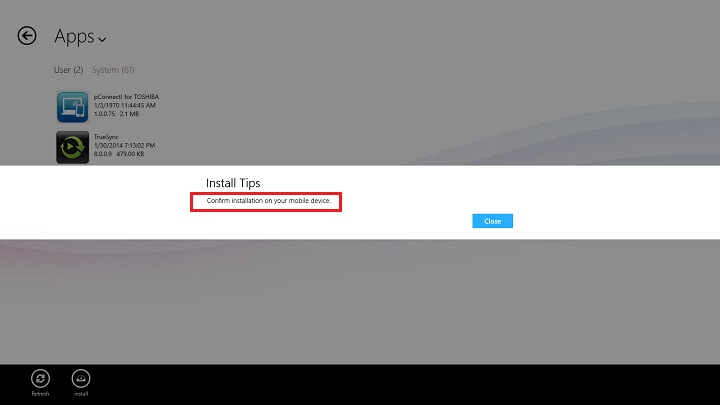
Confirmation message on Android: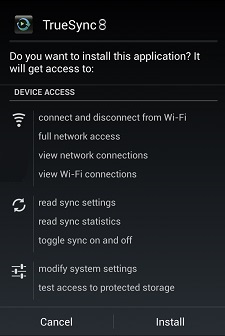
Download apk
1. Select an apk file you want to download then click/tap "Download" on App bar.
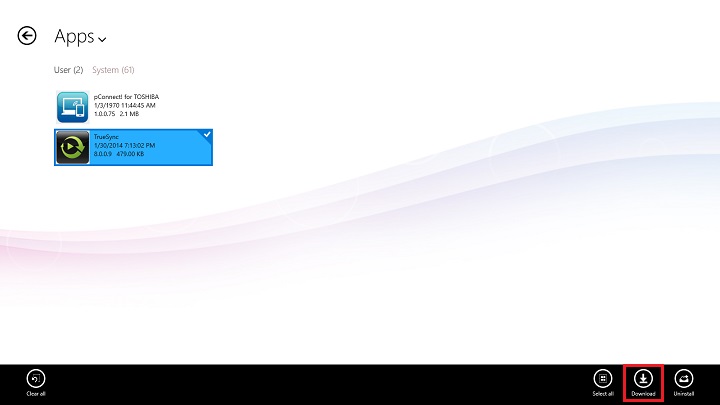
App commands
|
Clear all selected apps and exit select mode |
|
Select all apps |
|
Download selected apps. |
|
Uninstall selected apps |
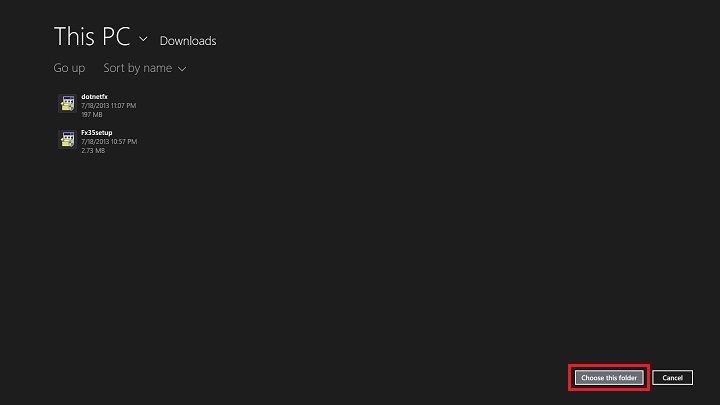
2. Select a valid download folder.
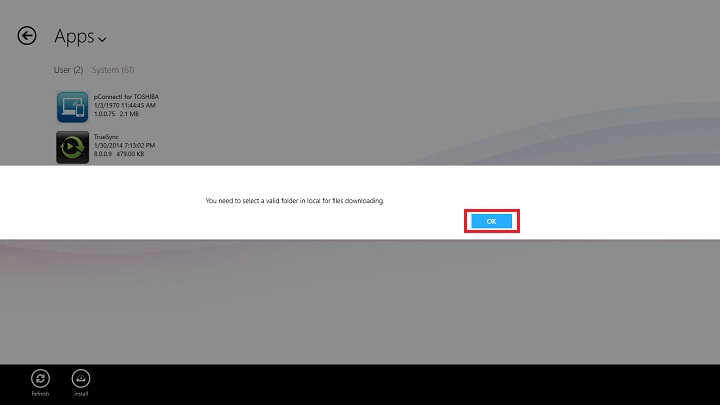
Note: Downloaded apk will be saved to file download folder. PC app ask you to setup the file download folder if you have not setuped yet.
After selecting the apk download folder, please click "Choose this folder".
*pConnect! may not show the application version installed on your smartphone correctly depending your smartphone.
This is also mentioned at [Remarks]
