
You can access/manage Contacts in your smartphone. Call/Send SMS or e-mail to Contacts, and Edit Contacts by pConnect!
>>Go to Create New Contacts
>>Go to Edit Contacts
>>Go to Call out from Contacts
>>Go to Send Message
>>Go to Send Email
>>Go to Delete Contacts
*pConnect! on the PC will not display contacts which do not have phone number. This is also mentioned at [Remarks]
You can open Contacts screen from either A or B:
A. Click/tap “Contacts“ from Top menu
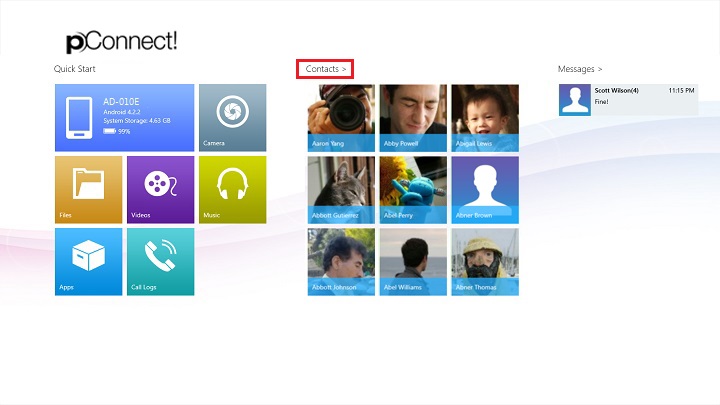
B. Click/tap “Contacts” from Flyout menu of each contents.
Below images shows open “Contacts” from Photos menu.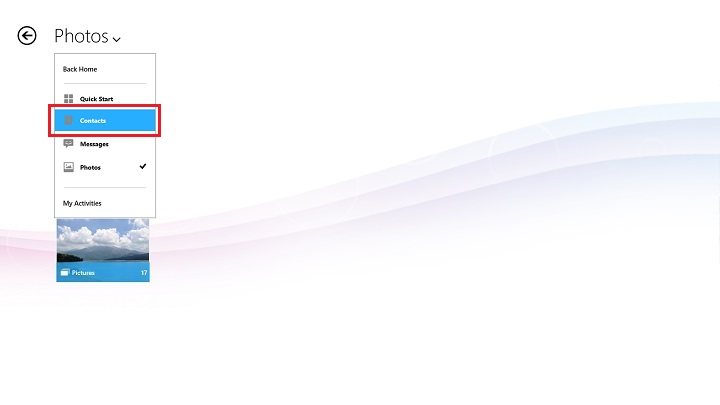
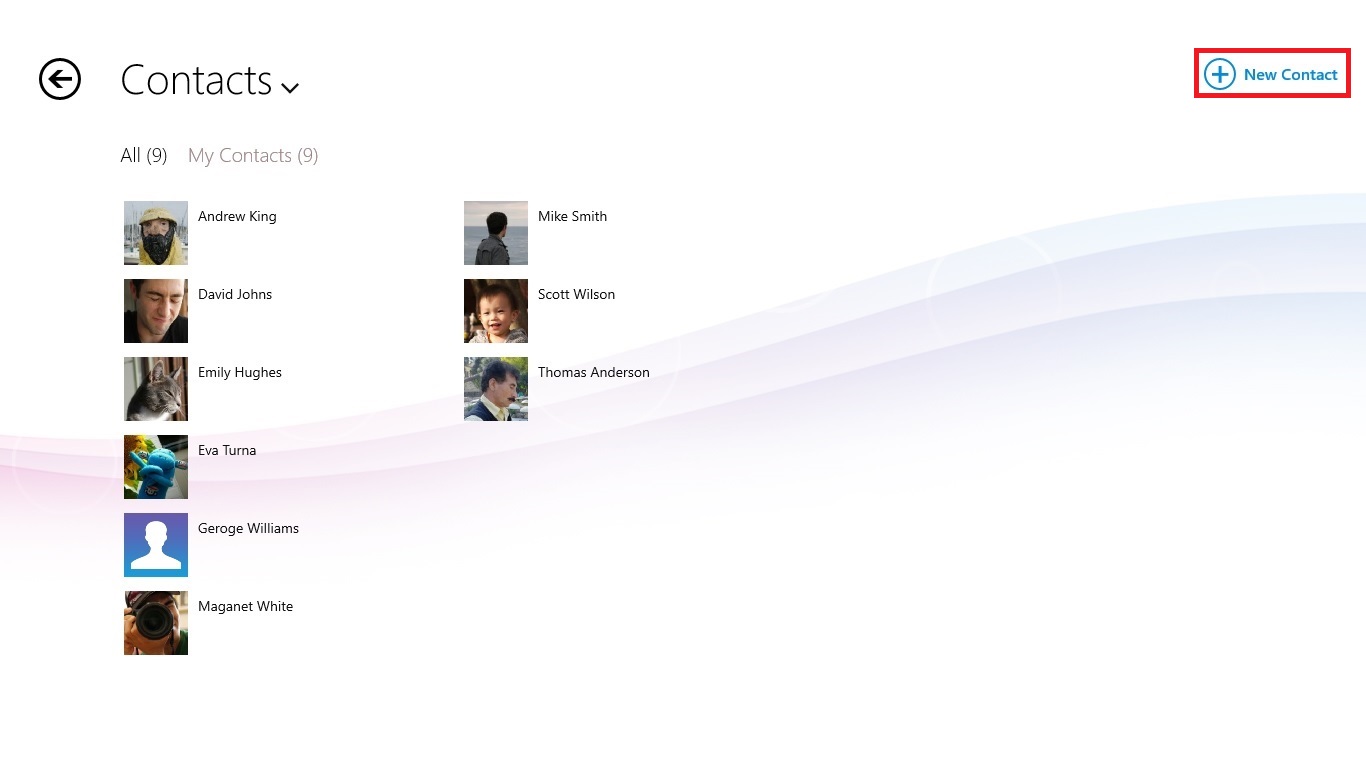
Create New Contacts
1. Click/tap "New Contact".
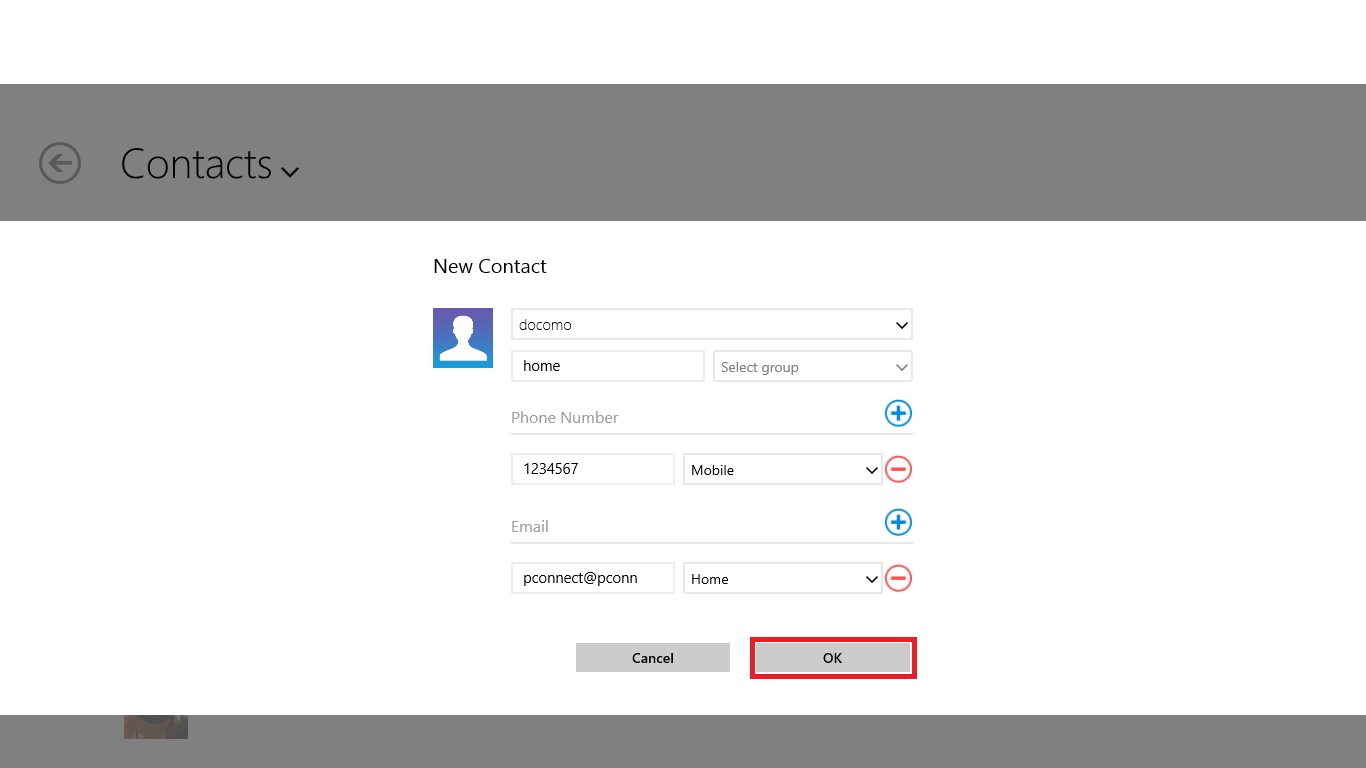
2. Select an account name and enter name/contact group/phone number/e-mail address then click/tap "OK".
Edit Contacts
1. Select a contact you want to edit from Contacts.
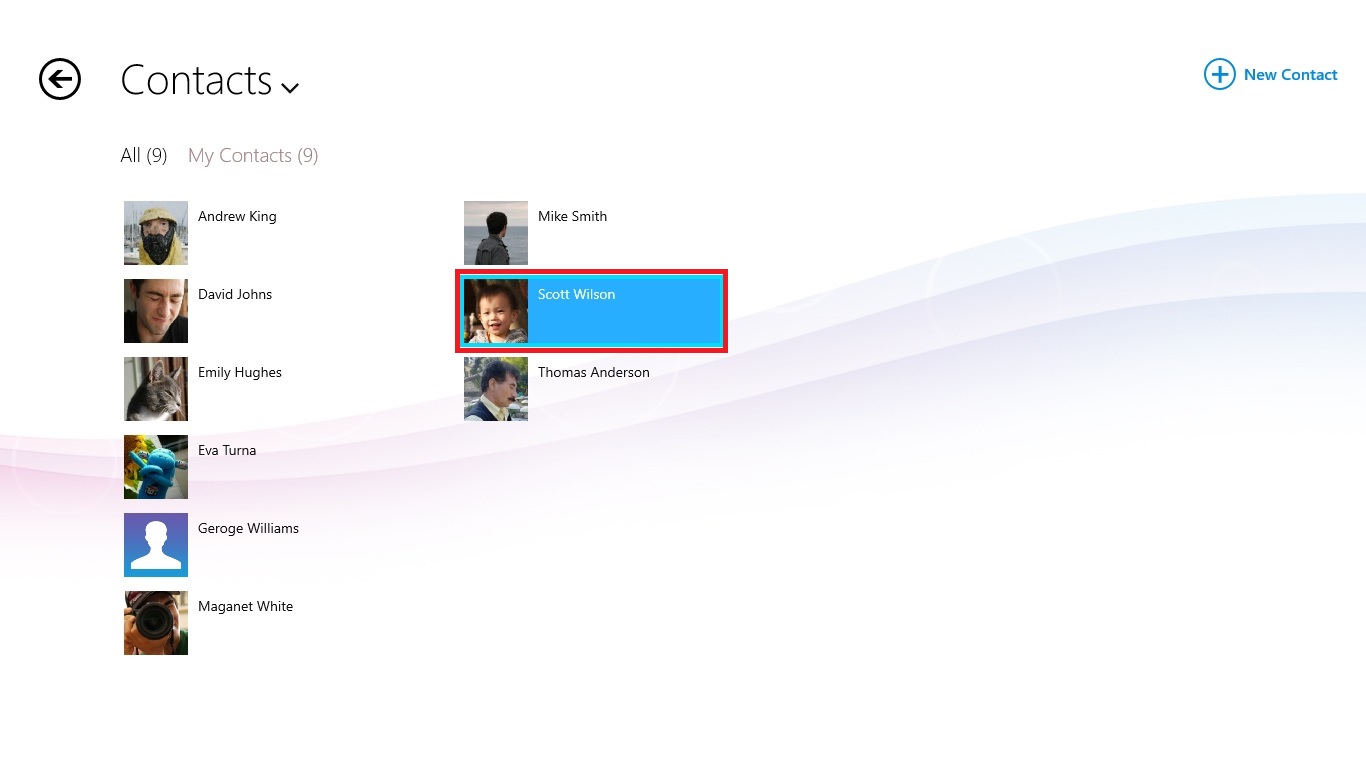
2. Click/tap “Edit Contact“.
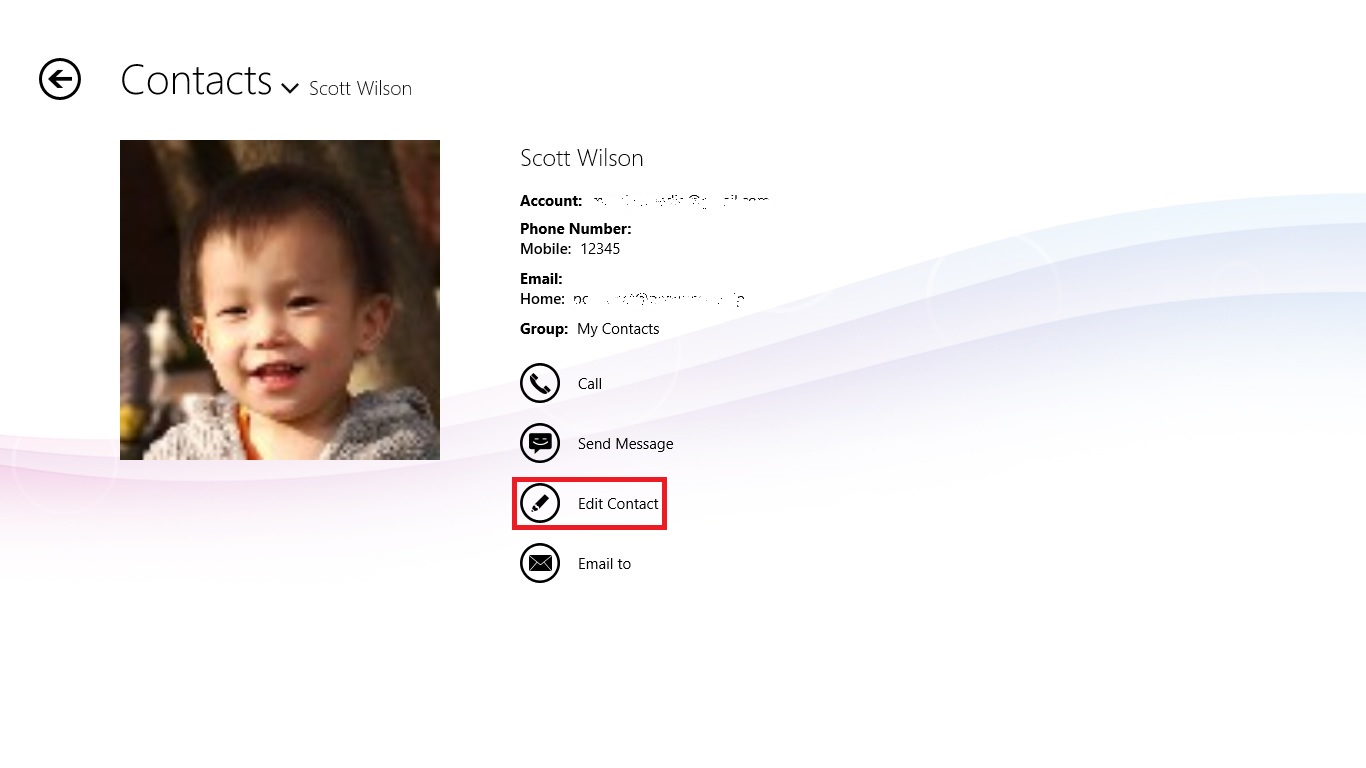
3. Edit the field you want to change and click/tap "OK".
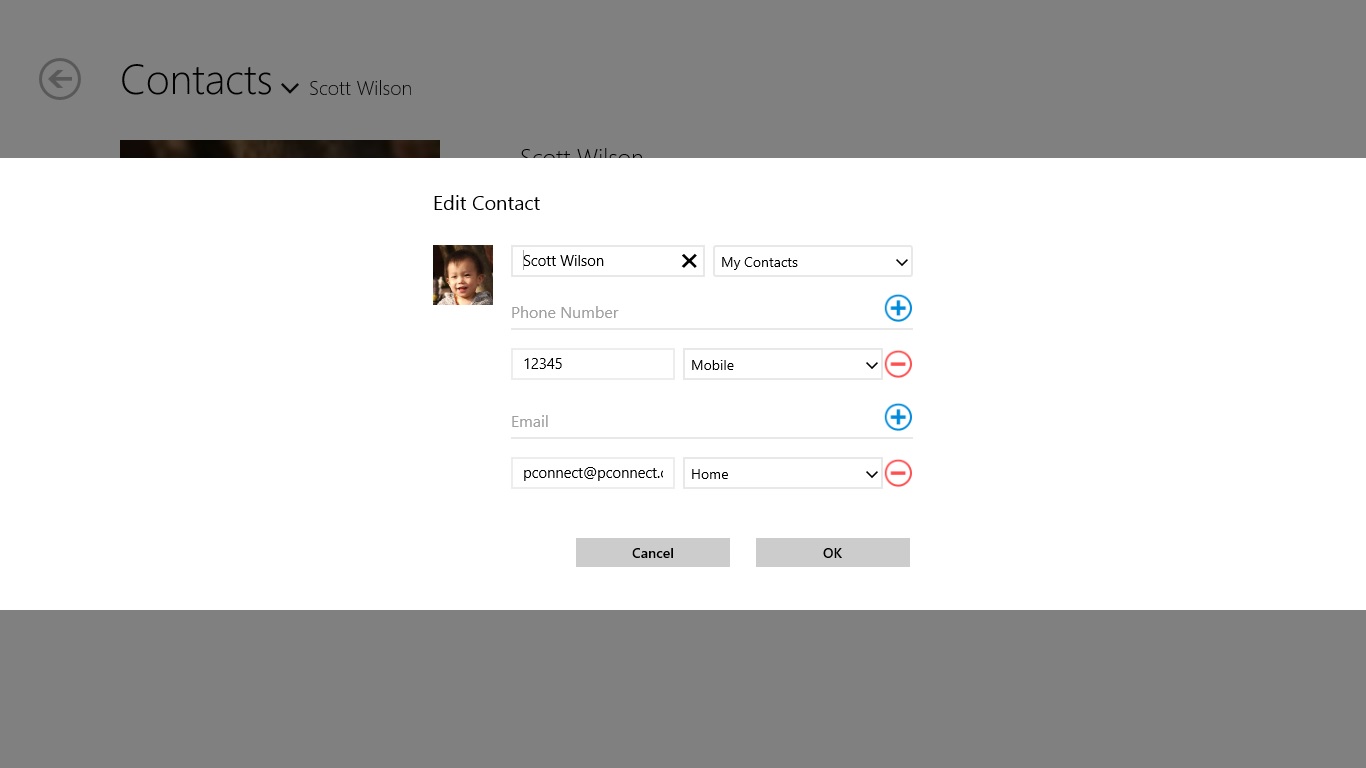
Call out from Contacts
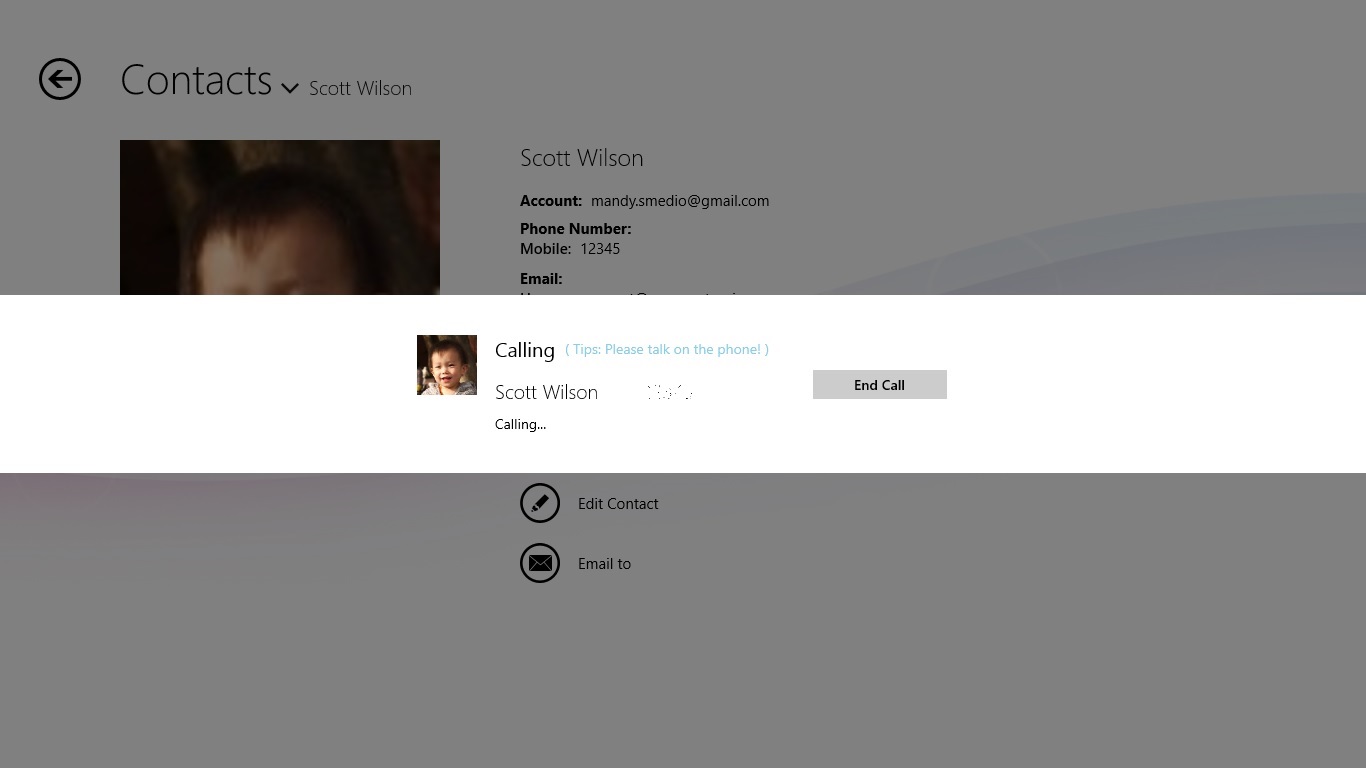
1. From Contact menu, choose a contact and click/tap "Call".
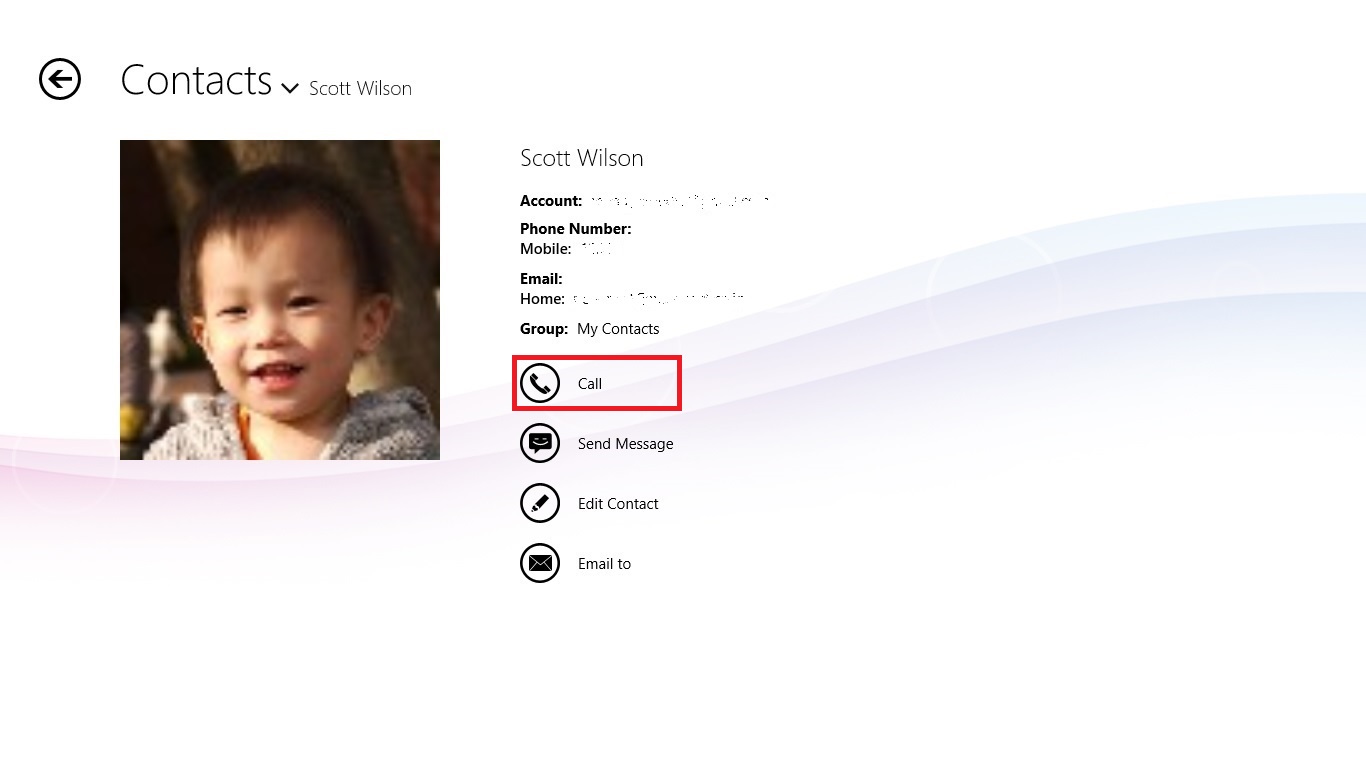
2. Call out started. You need to talk on smartphone when you call out.
Send Message
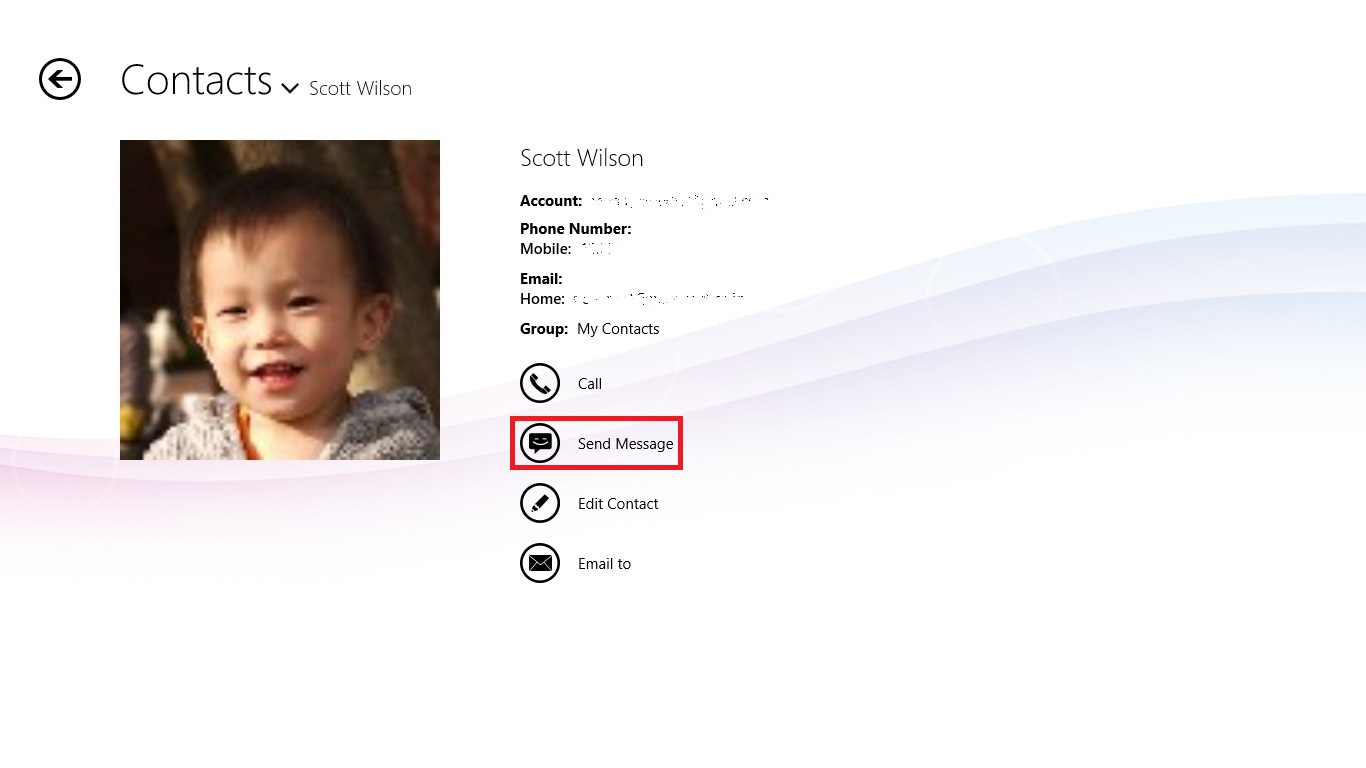
1. From Contacts menu select a contact and click/tap "Send Message".
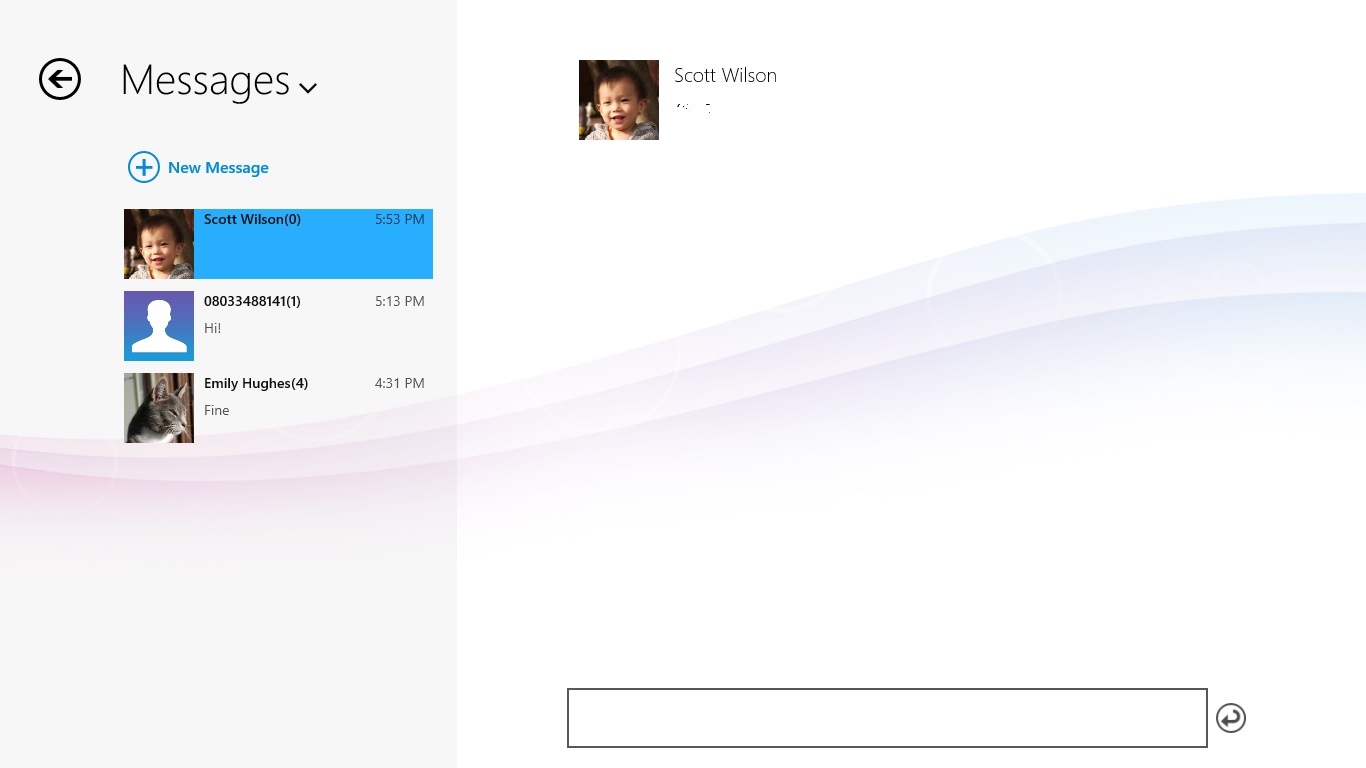
2. Enter a message in the message box and send.
Send Email
1. From Contacts menu select a contact and click/tap "Email to".
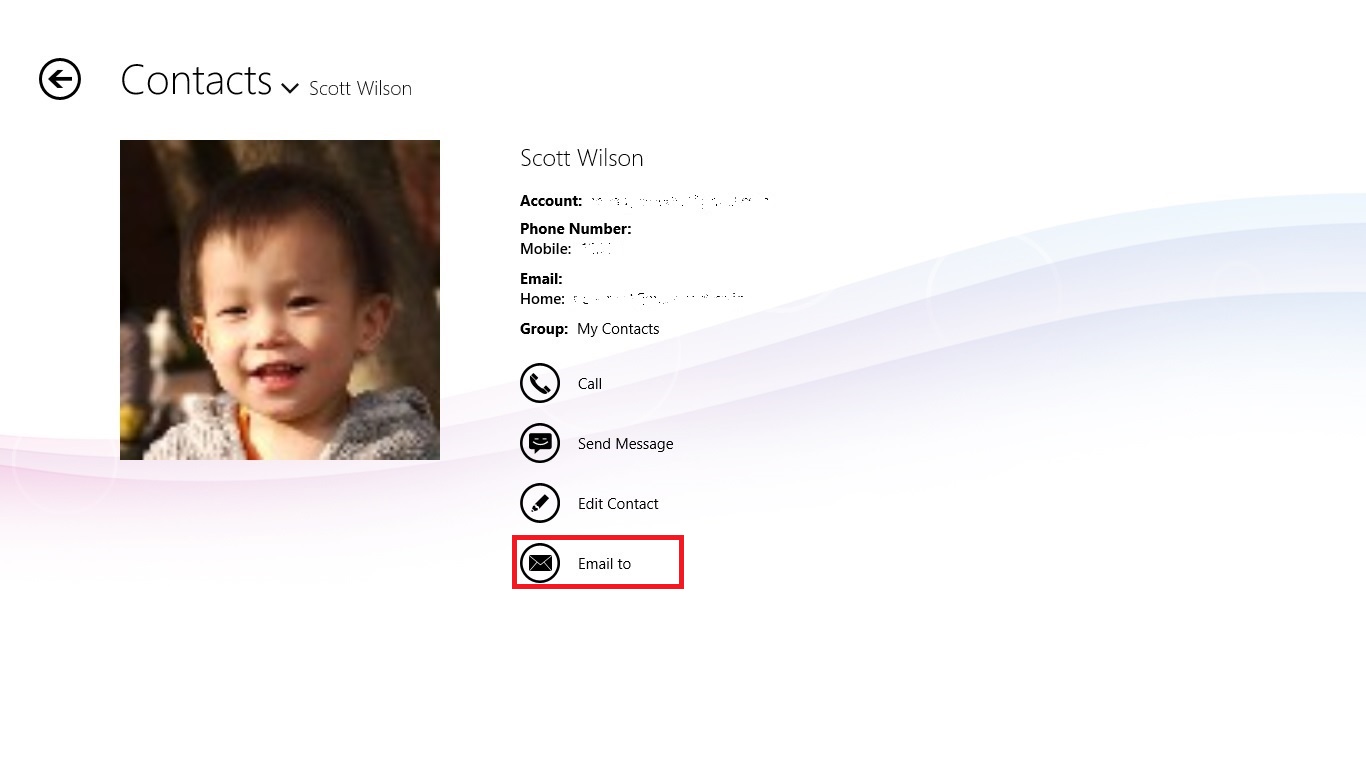
2. Default e-mail application will be launched from Windows OS.
Delete Contacts
1. Right click or cross slide on contacts you want to delete, App bar will be appeared then click/tap "Delete".
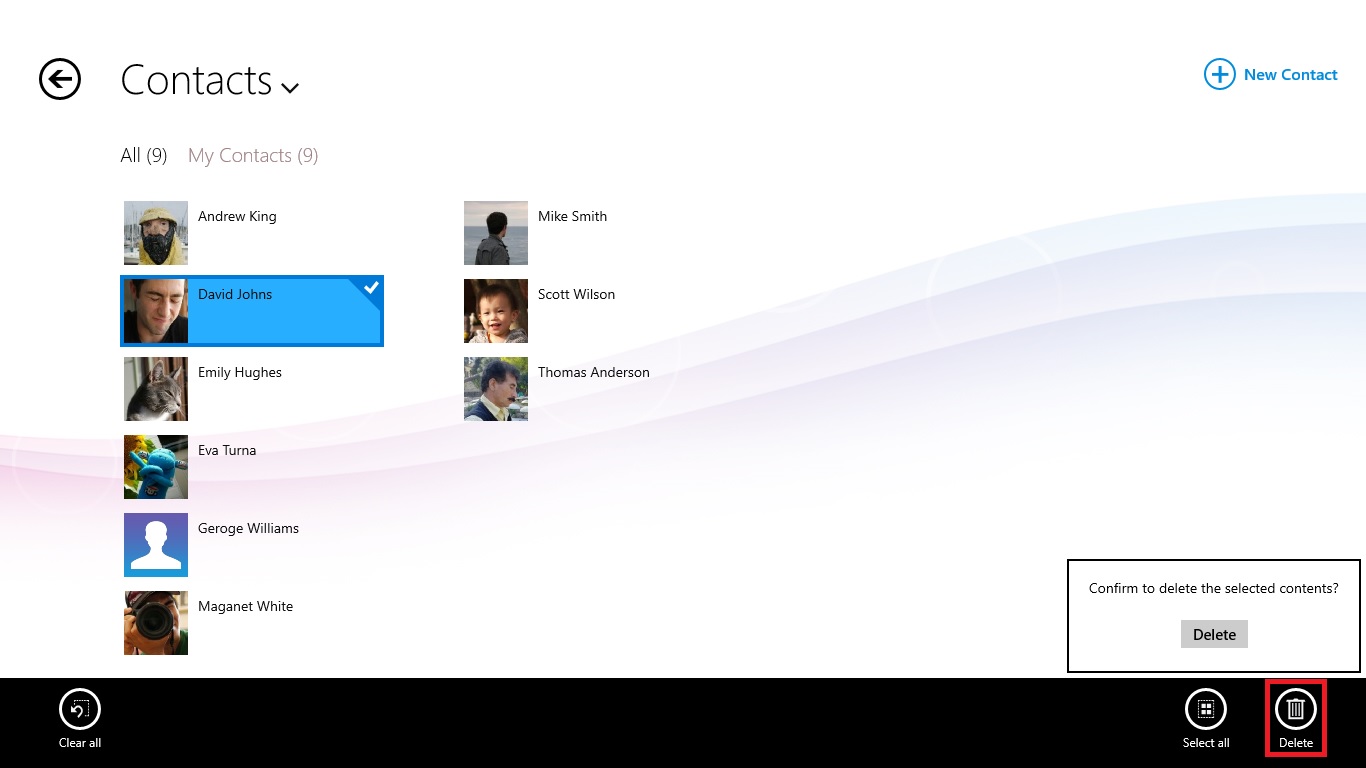
App commands
 |
Clear all selected contacts and exit select mode |
 |
Select all contacts |
 |
Delete all selected contacts |
