You can manage Messages in your smartphone on the PC big screen.
pConnect! only supports the Google standard SMS application in your smartphone.
>>Go to Reply Messages
>>Go to Send New Messages
>>Go to Delete Messages
>>Go to Save New Contact
You can open messages screen from either A or B:
A. Click/tap Messages from Top menu
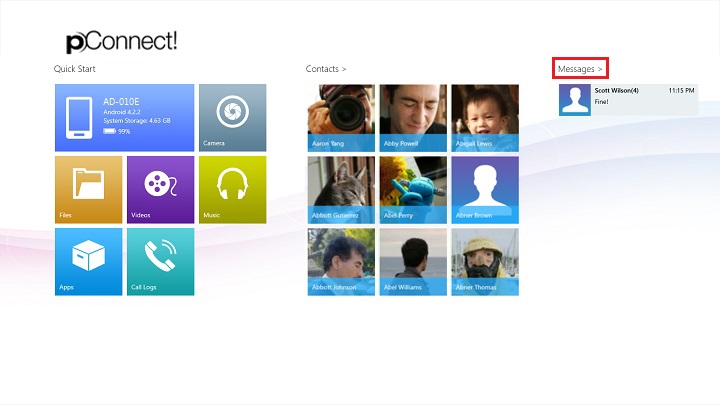
B. Click/tap Messages from Flyout menu of each contents.
Below images show open “Messages” from Photo menu.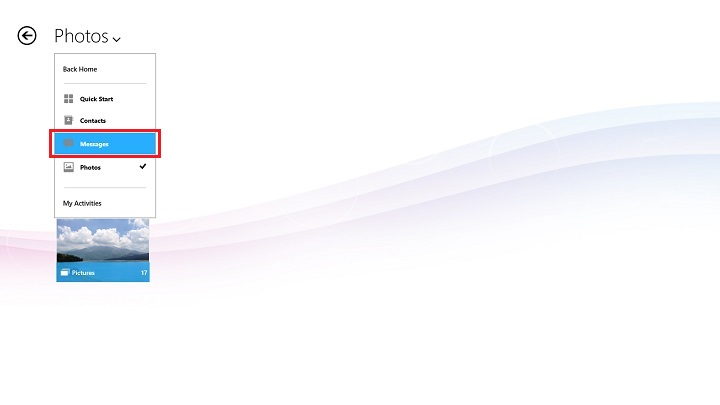
Reply Messages
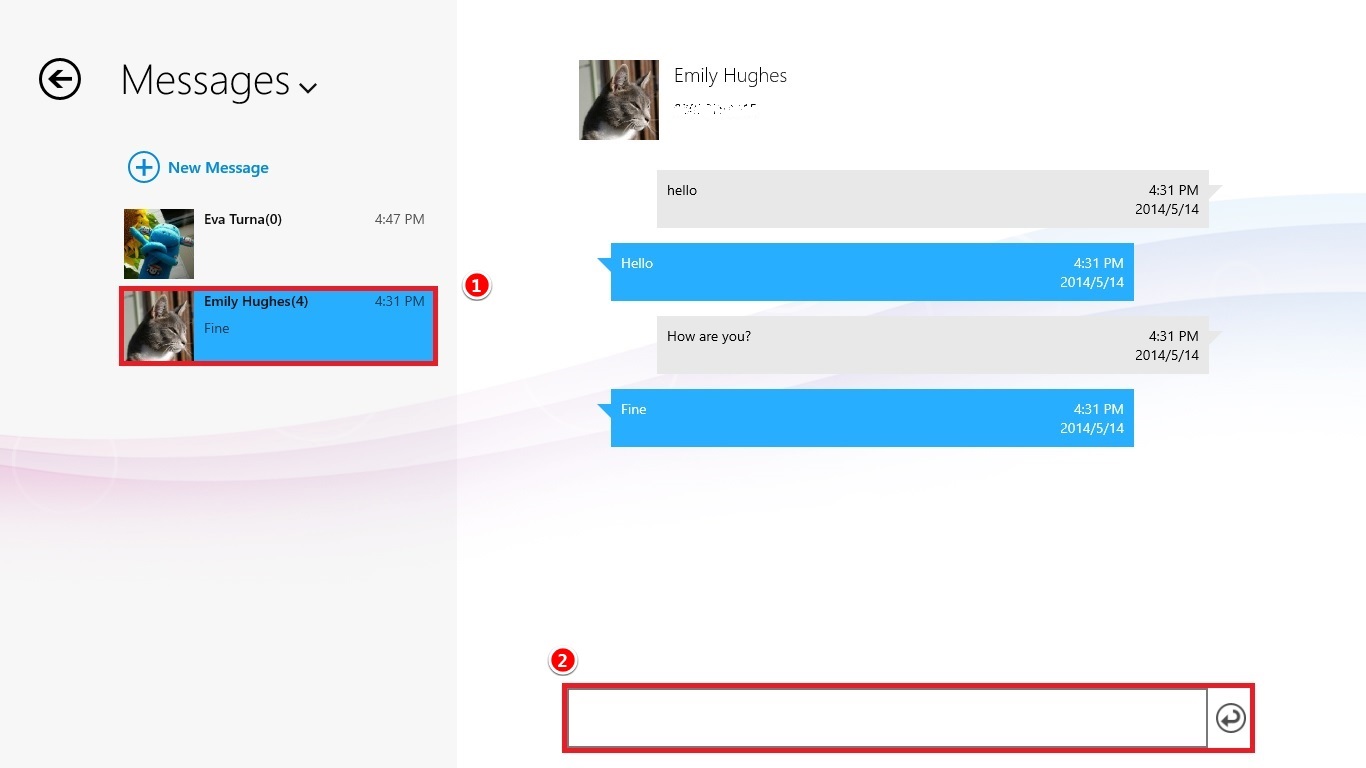
You can reply message either from Message page or Contacts page.
1. Select a contact from left pane.2. Type the message in the right pane then tap a send button.
Send New Messages
You can send a new message either from Message page or Contacts page.
1. Select "New Message" from Message page.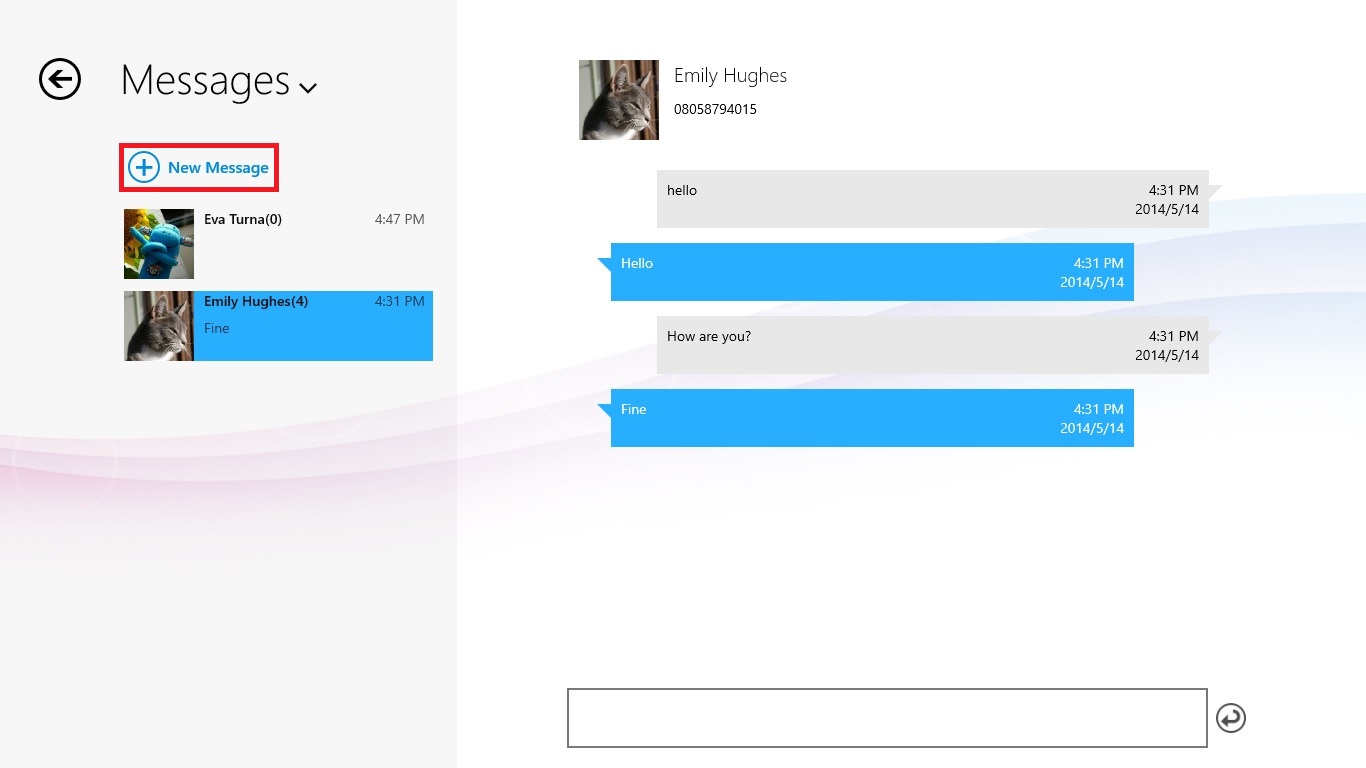
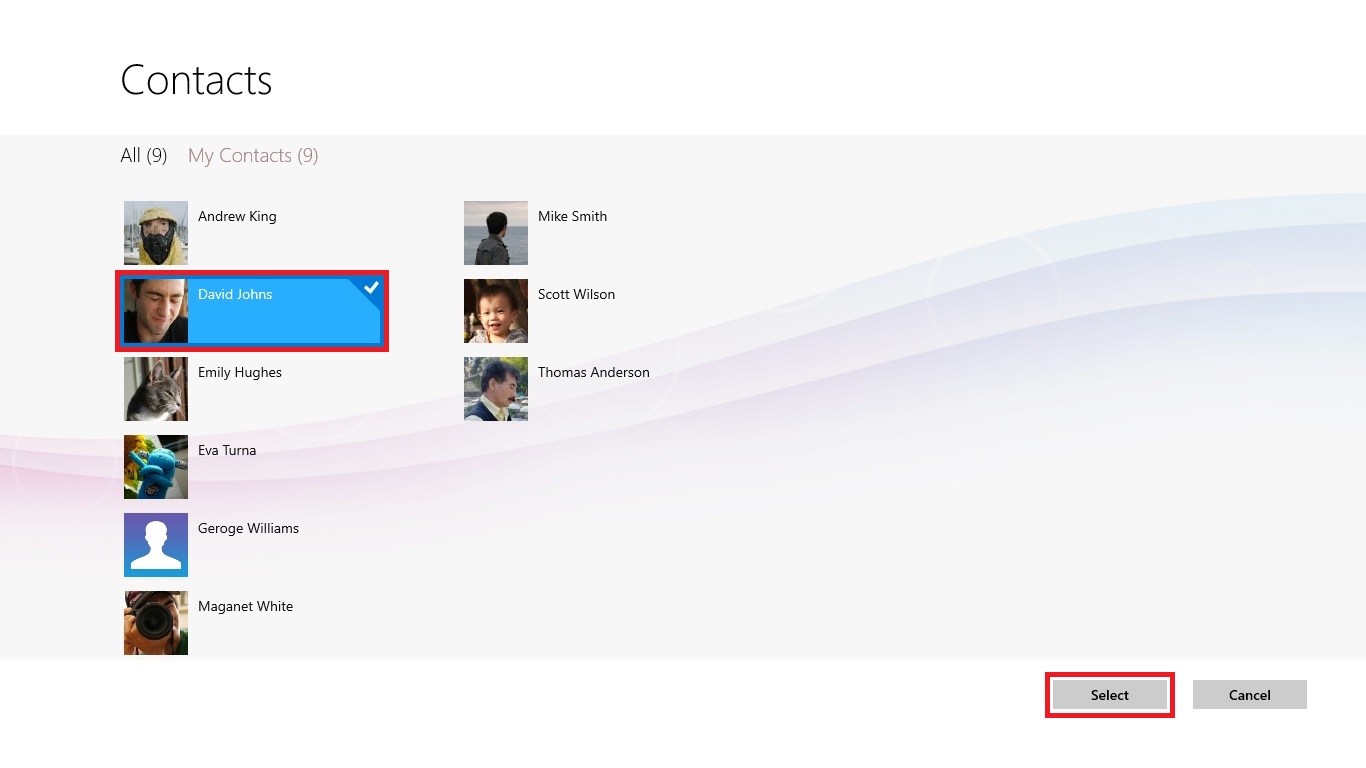
2. Choose a contact you want to send messages and click/tap "Select"
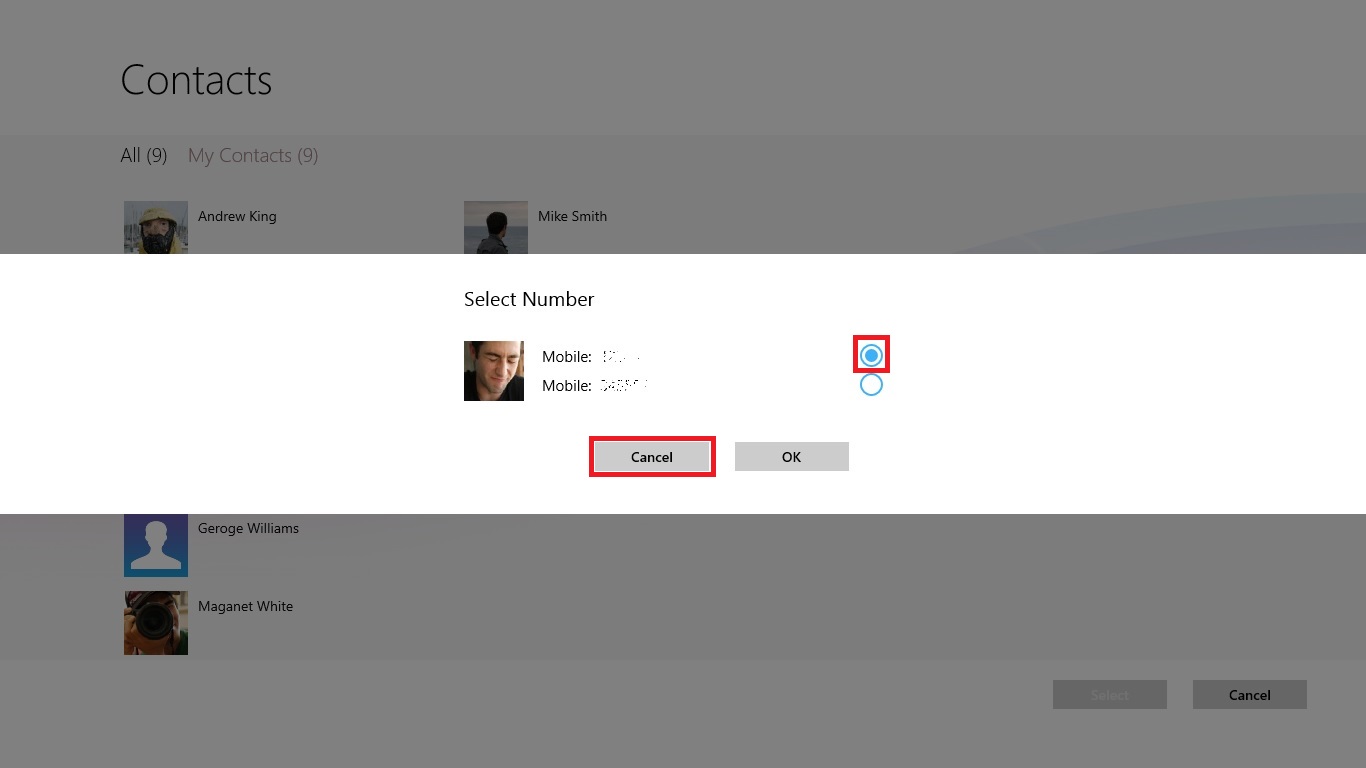
3. If the contact has multiple phone number, select a number you want send and click/tap "OK".
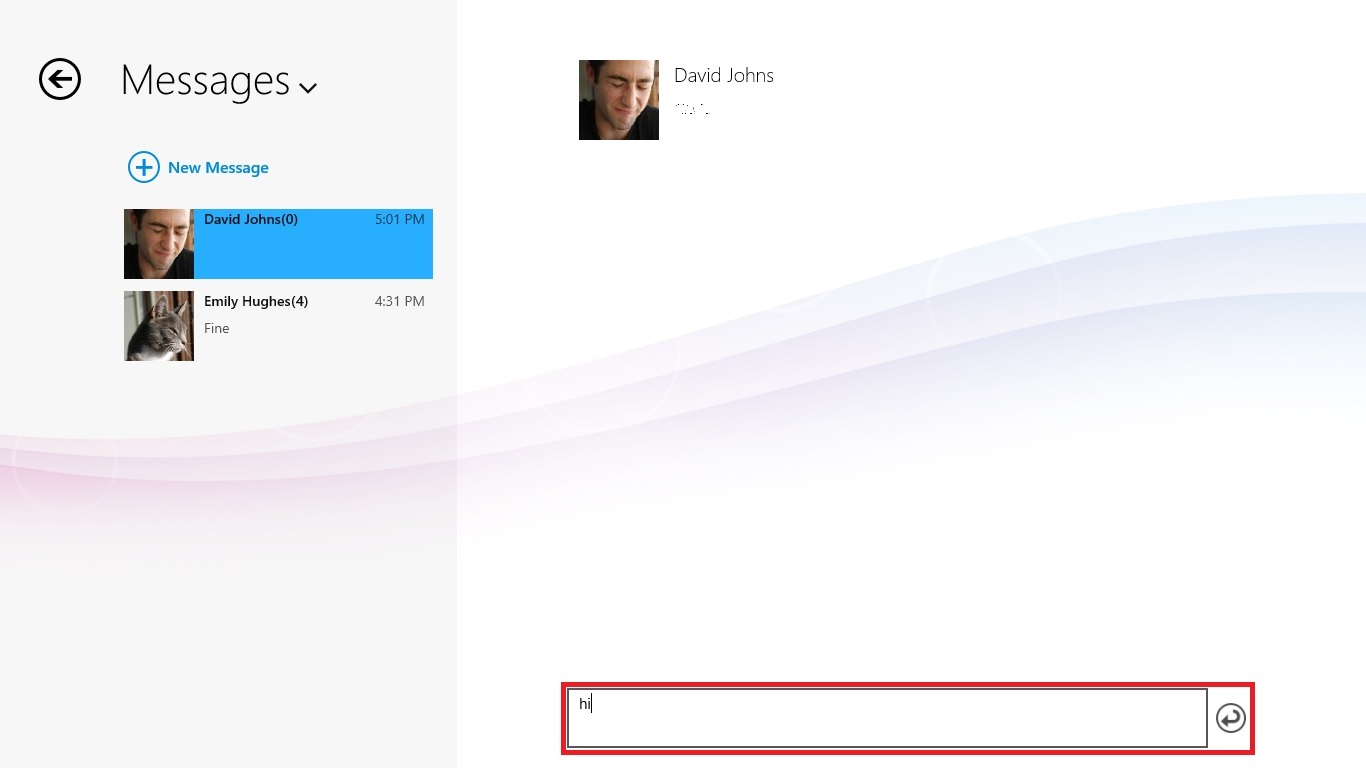
4. Type a message in the message box then tap a send button.
Delete Messages
1. Select the conversation you want to delete. All messages belonging to the conversation will be deleted.
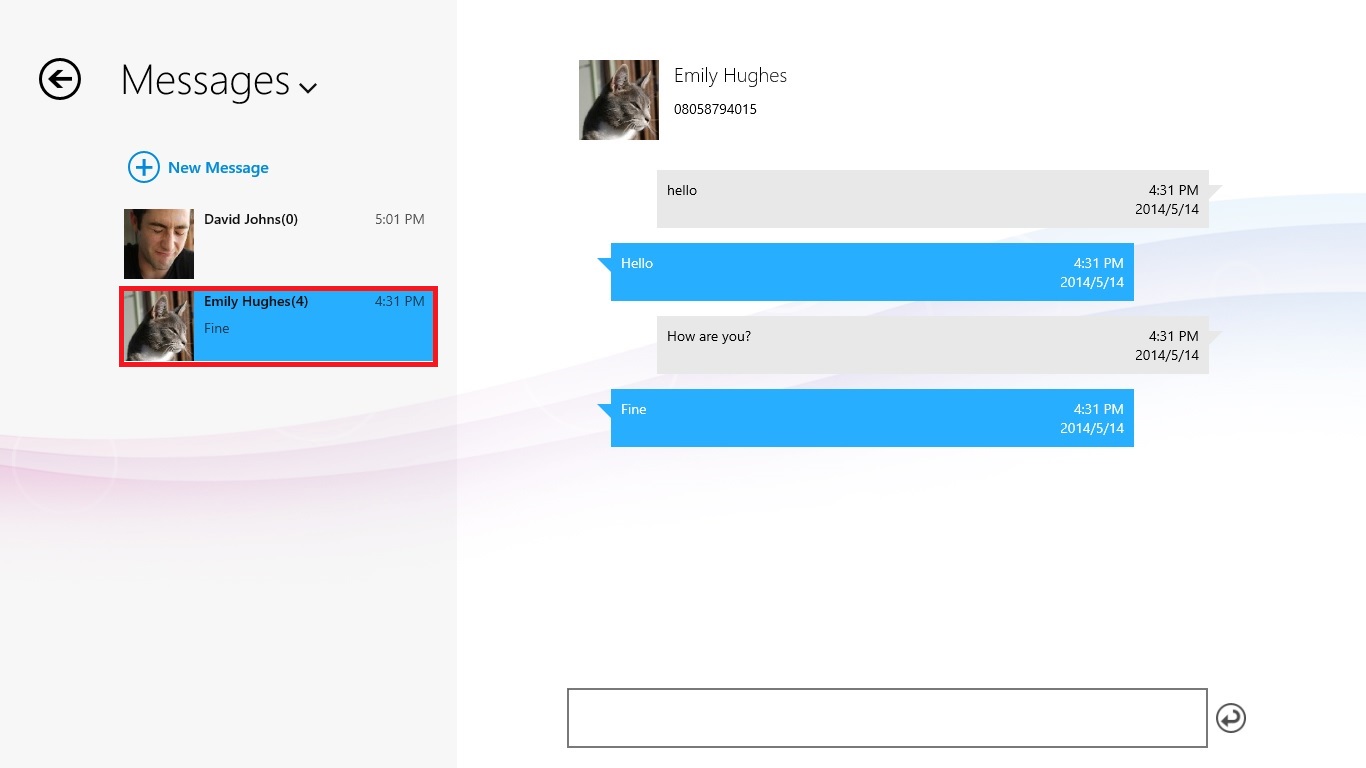
2. By right click on the selected message conversation, "Delete" icon will be appeared in App bar.
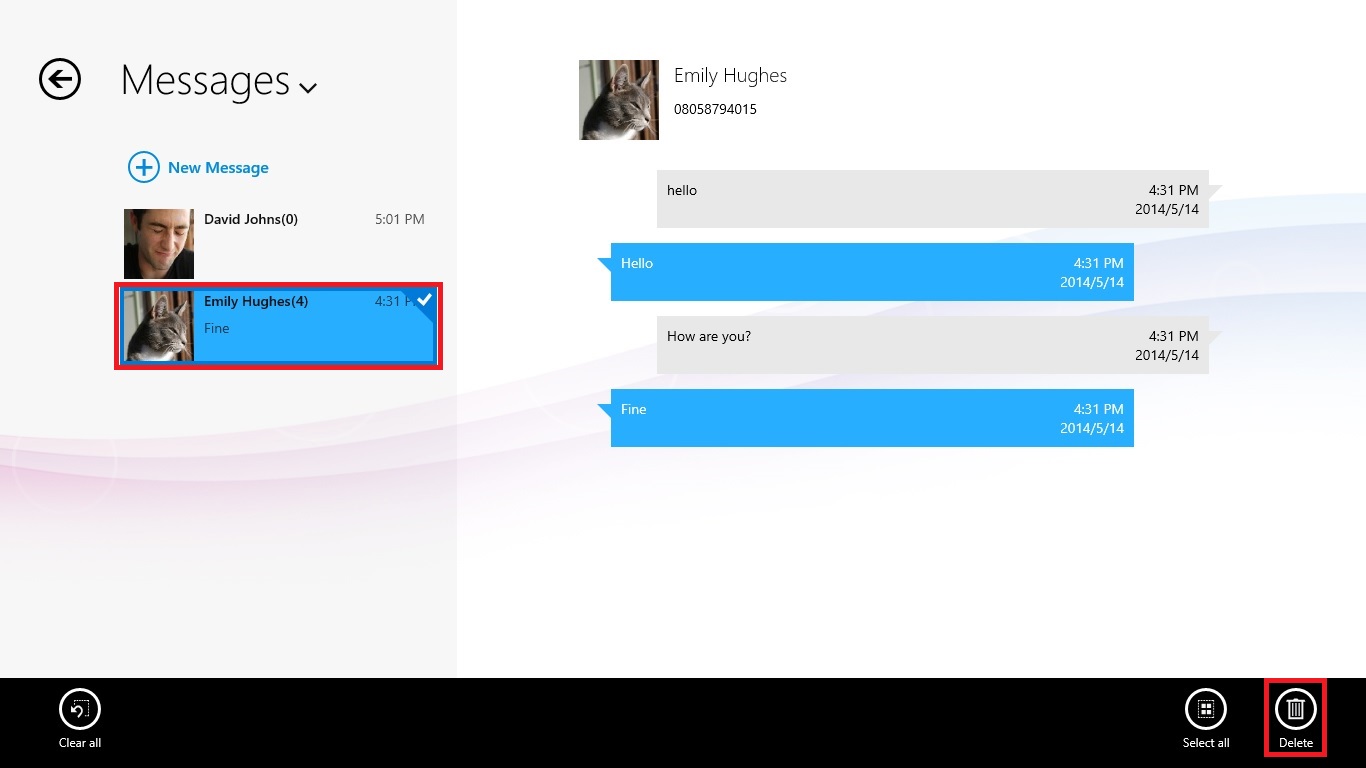
App commands
 |
Clear all selected messages and exit select mode |
 |
Select all messages |
 |
Delete all selected messages |
*pConnect! on the PC may not be able to delete messages in smartphone or may not show unread message icons depending on your smartphone. This is also mentioned at [Remarks]
Save New Contact
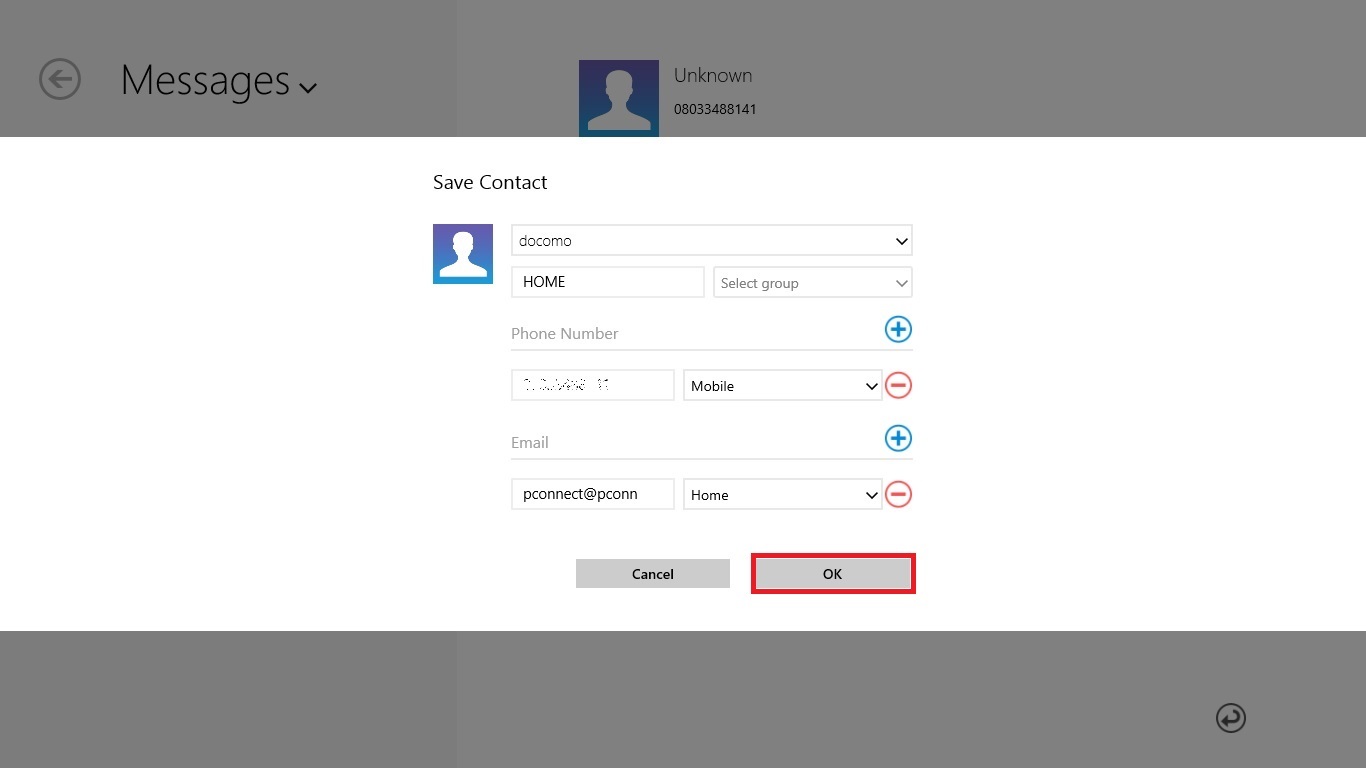
1. Select an unknown contact from "Messages" page.
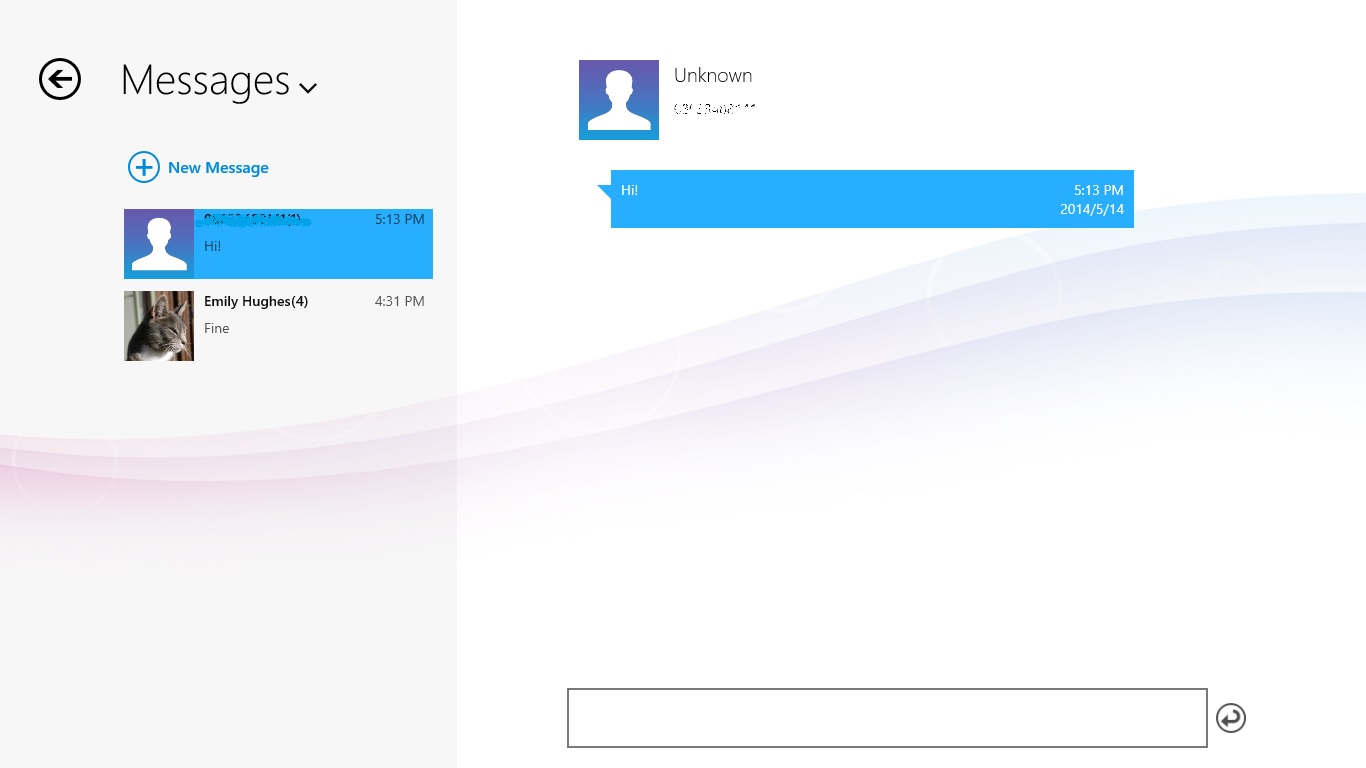
2. Right click or flick from bottom of screen and select "Save Contact" from App bar.
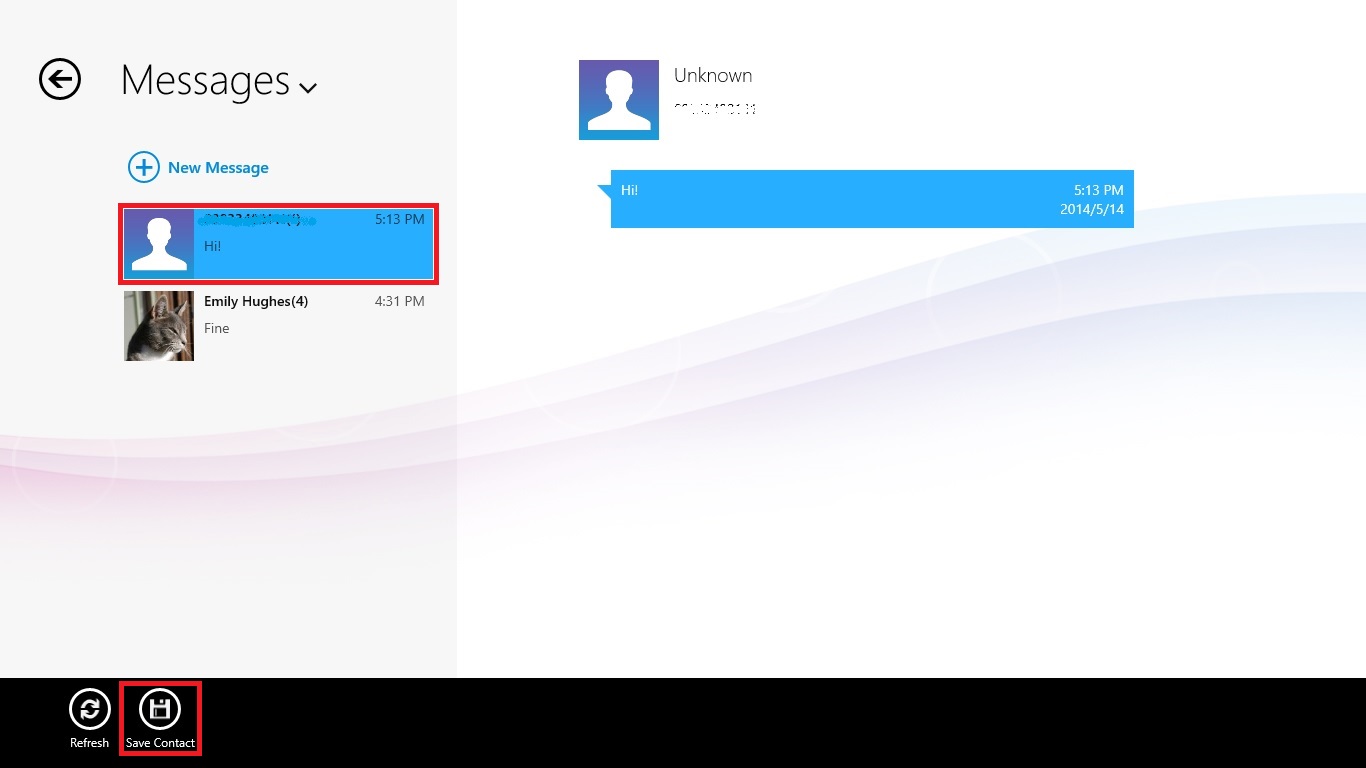
App commands
 |
Refresh: Refresh display |
 |
Save Contact: Save selected person to contact |
3. Enter the contact information then click/tap "OK".