
In order to use pConnect! for TOSHIBA, you need to pair your smartphone with PC.
1. Make sure your PC and smartphone are both connected to the same Wi-Fi.
*pConnect! requires network profile to set as private network for data security. This is also mentioned at [Remarks]
PC Network Setting screen: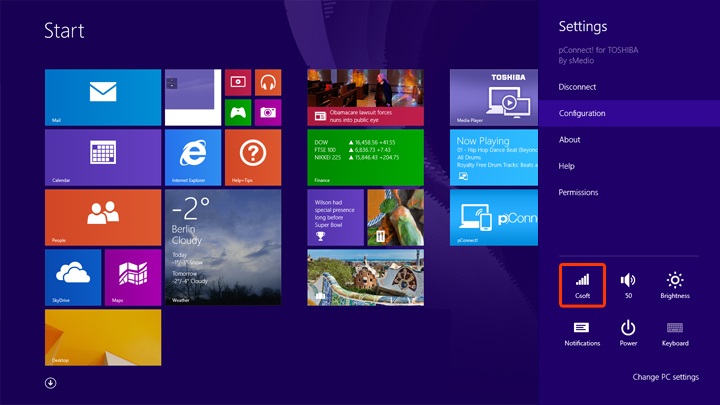
Android Network Setting screen: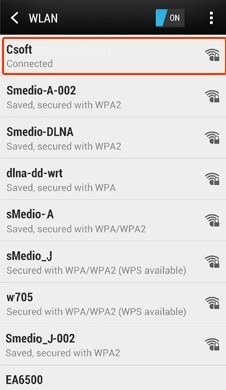
2. Launch pConnect! for TOSHIBA on your PC
- Click/tap pConnect! for TOSHIBA on Start Screen. If pConnect! for TOSHIBA is not listed, click/tap All Apps.

3. Launch pConnect! for TOSHIBA on your smartphone
- You can install pConnect! for smartphone either from Google Play or by click/tap [install mobile device app] link shown pConnect! on PC.
PC screen shown below:
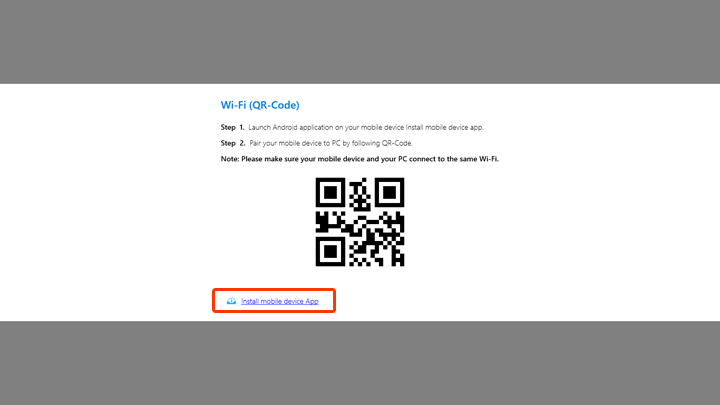
- By click/tap [install mobile device app], the link for Google Play will be displayed. By scanning QR code or entering url on smartphone, you will be forwarded to pConnect! install page on Google Play.
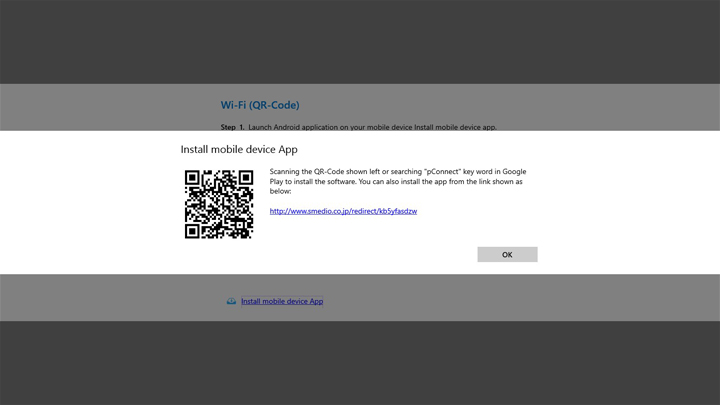
- You can install pConnect! for Android on Google Play
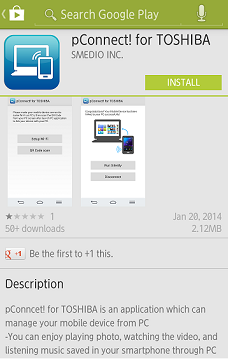
- After installation completed, please launch pConnect! on smartphone by tapping icon below.

- pConnect! start menu will be displayed on smartphone.
Make sure PC and smartphone are connected to the same WiFi. By tapping "Setup WiFi", you can change WiFi connection.
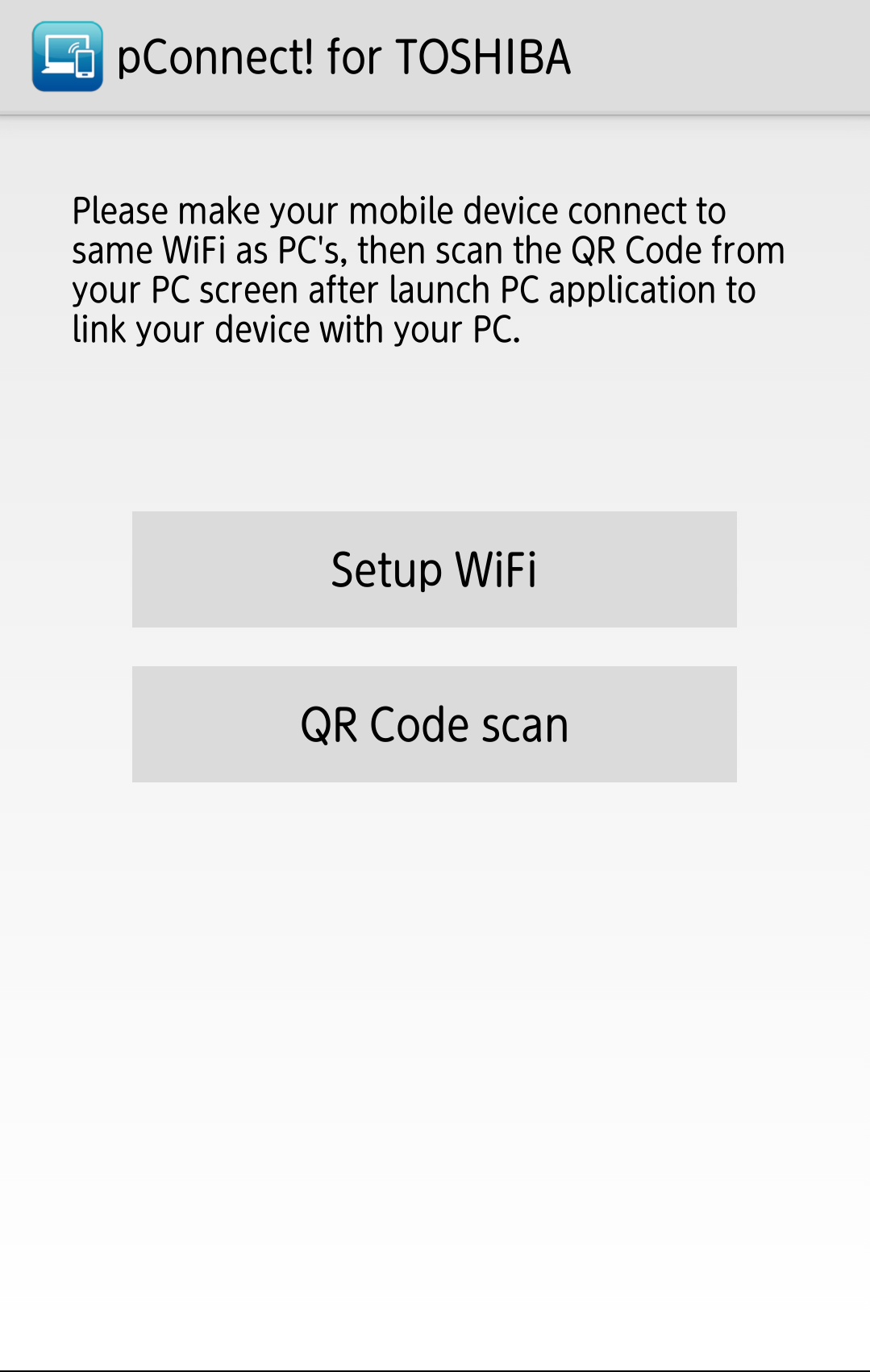
Note: To maintain pConnect connection with PC, please always keep Wi-Fi on during sleep. You can check how to always keep Wi-Fi on [Q&A]
4. Start pairing pConnect! for TOSHIBA
Scan QR code displayed on your PC by using smartphone app.
QR code on PC: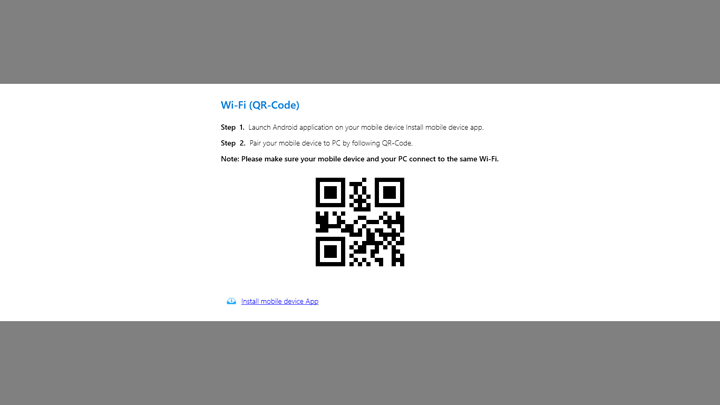
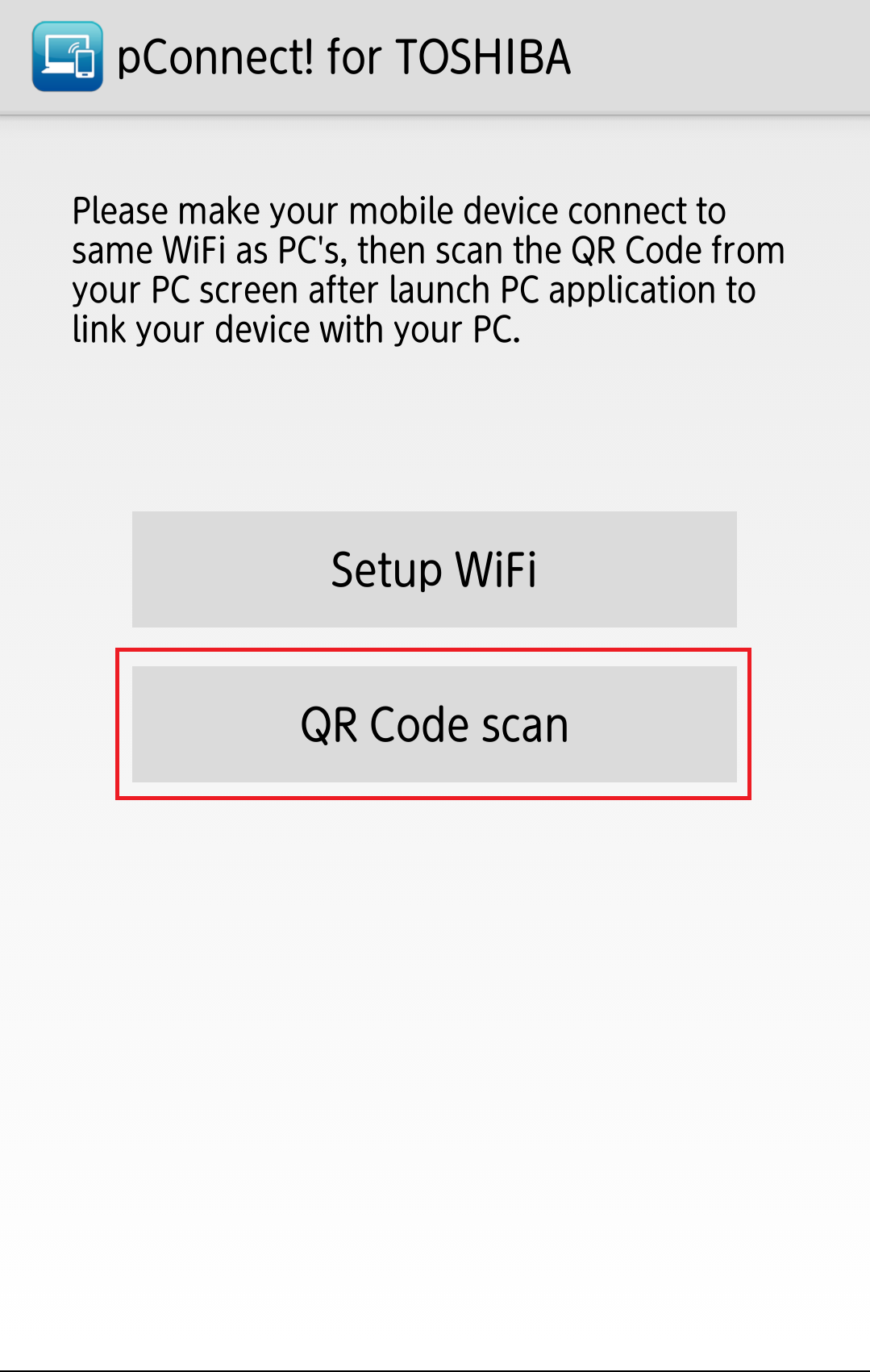
Tap "QR Code scan" on smartphone, then scan QR code on PC.
5. After pairing succeeded, pConnect! main menu will be displayed
pConnect! main menu on PC:
pConnect main menu on Android: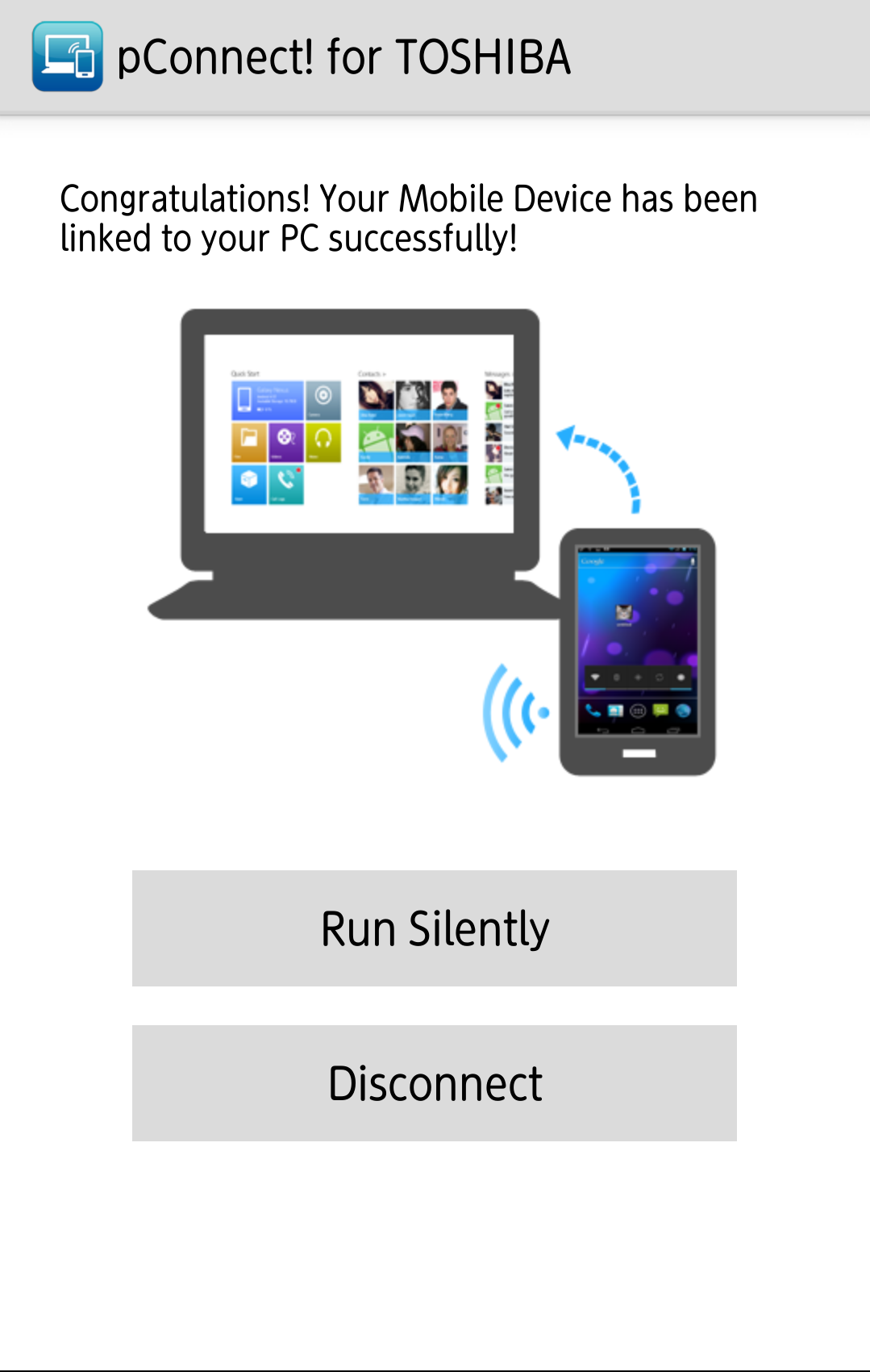
- Run Silently : The application on smartphone runs background
- Disconnect : Disconnect from PC. Please refer to Disconnect in [Settings] for detail.
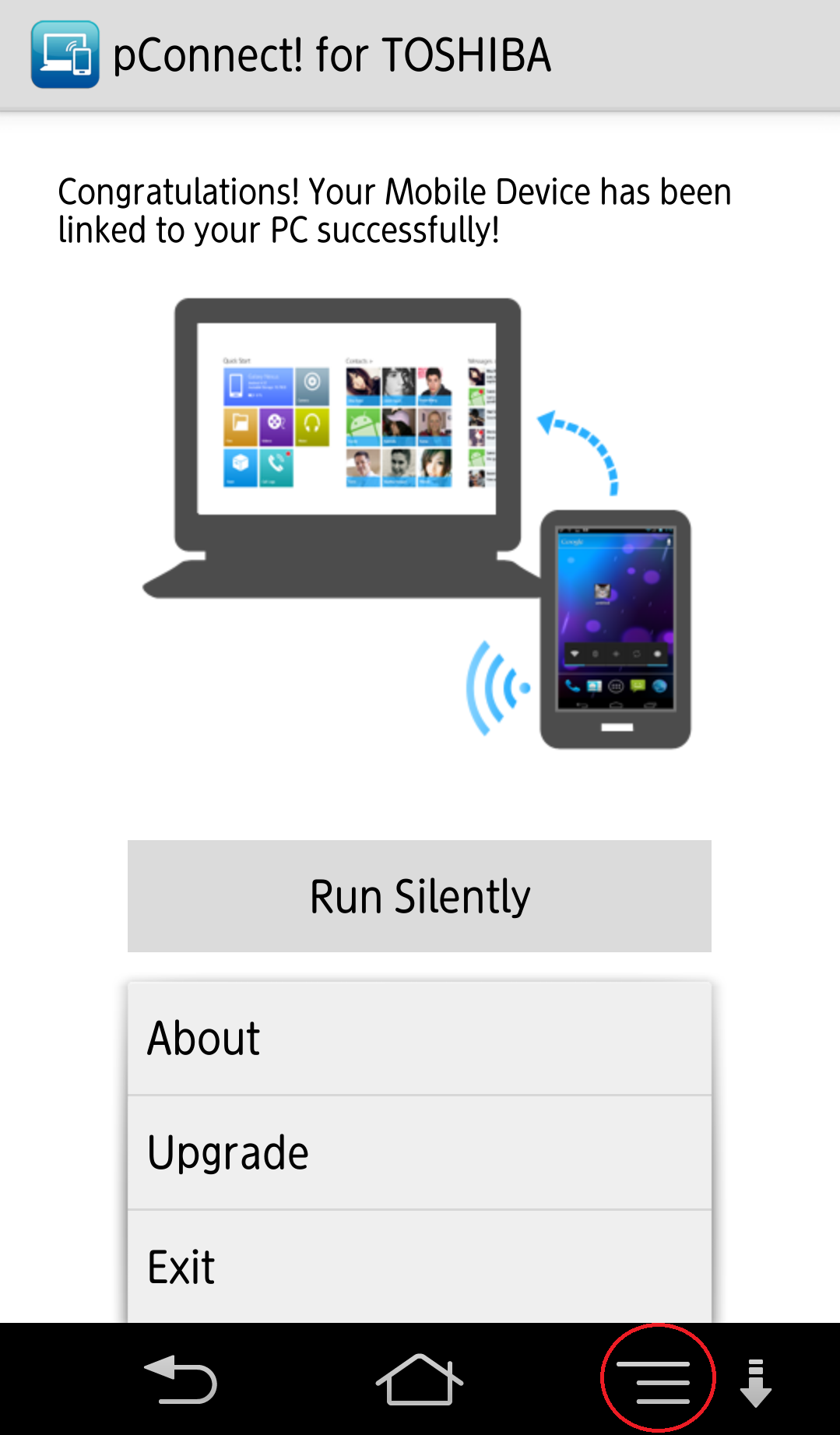
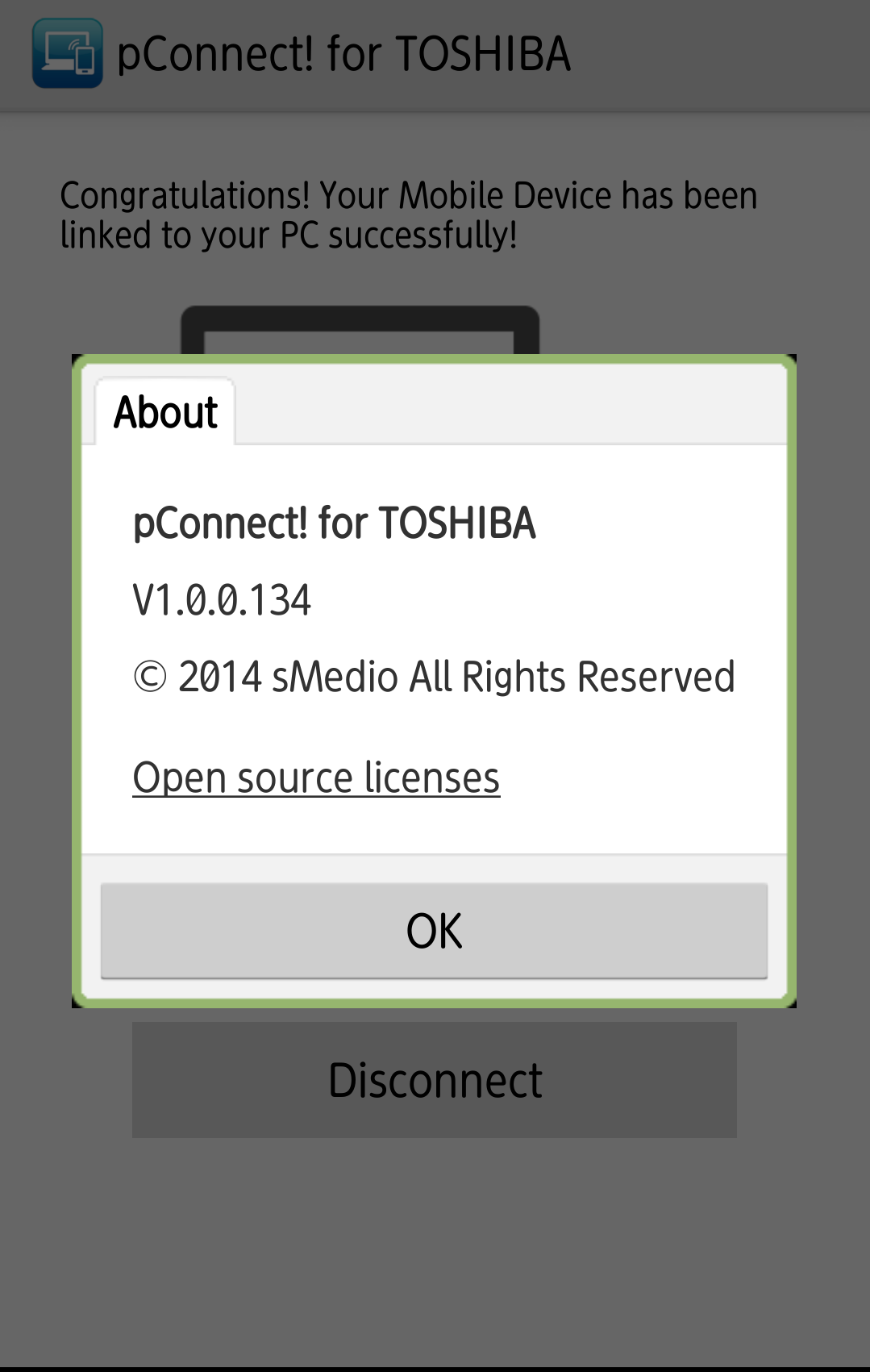
By tapping system Menu button:
*The location of the button will depend on your mobile device.
- About : You can check pConnect! version and Open source licenses
- Upgrade : Link for pConnect! on Google Play to upgrade
- Exit : You can exit pConnect! mobile app
*Pairing of pConnect! may be disconnected automatically depending on your network environment.
*Pairing of pConnect! will be disconnected if you remove SD card from your smartphone.
These are also mentioned at [Remarks]
